Shopify App Security Audit: How to Check Your Apps’ Security and Permissions (Step-by-Step)

Most Shopify merchants think about security in terms of their own password. But in 2026, some of the most damaging attacks on Shopify stores didn’t come through the merchant’s login at all. They came through the apps merchants had installed and trusted for years. That’s why Shopify app security deserves as much attention as your own login.
Every app you install gets a key to part of your store. Some read your orders. Some can edit your customers, your theme, or what runs on your checkout. If the app (or the company behind it) is compromised, the attacker gets that key too.
The good news: Shopify now shows you, for every installed app, whether it meets Shopify’s security standards and exactly which parts of your store it can access. In this guide, we’ll walk through how to read those screens, what to look for, and what to do when something doesn’t look right. It takes about five minutes per app.
What happened: recent Shopify app security incidents
A few recent incidents show why this matters:
- Checkout hijacking through app-delivered scripts (October 2026). Shoppers on several Shopify stores clicked “Checkout” and were silently redirected to a fake checkout page on look-alike domains that collected their name, address and card details, then sent them back to the real checkout so nothing looked wrong. Investigators traced the malicious JavaScript to configuration served by a third-party app developer’s API, not to the stores themselves. Several apps were later fixed or de-listed from the Shopify App Store. (source)
- A breach at a widely used analytics platform (October–November 2026). A threat actor claimed to have taken an internal database that included Shopify access tokens for more than 20,000 connected stores, plus millions of customer records from one merchant. The claim was not independently verified, and the actor said most tokens had already been rotated. (source)
- The platform later confirmed unauthorized access to some internal systems, said the incident was contained, and notified affected parties. (source)
The pattern is the same in both cases: the merchant did nothing wrong on their own account. The weak point was a third party that already had legitimate access to the store.
Why Shopify app security is often the weak link
- Access tokens are long-lived keys. When you install an app, Shopify gives it an access token. If that token is stolen from the app developer’s servers, it can be used to call your store’s API with whatever permissions the app has.
- Apps can run code on your storefront. Theme app extensions, app embeds and scripts load on every page your customers visit. If the content behind them is tampered with, it runs in your customers’ browsers.
- Permissions pile up. Apps request permissions at install, then often ask for more after updates. Many stores have apps with “edit” access to data they never needed.
- Forgotten apps still have access. An app you tested two years ago and never removed still holds its key.
You can’t audit an app developer’s servers. But you can control which apps have access, how much access they have, and whether they meet Shopify’s security requirements.
Step 1: Open your list of installed apps
In your Shopify admin, go to Settings → Apps and select the Installed tab. You’ll see every app on your store along with an Activity column showing when each app last used its access.
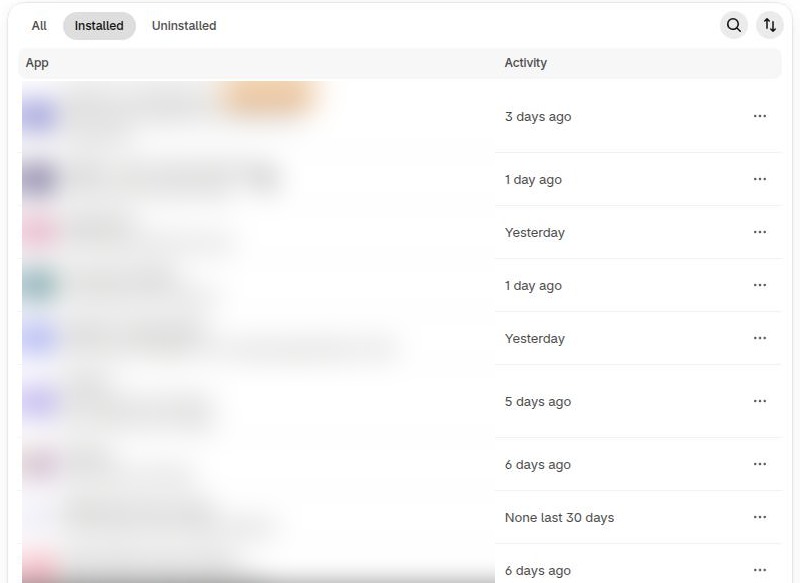
Before going app by app, do a quick first pass:
- Are there apps you don’t recognize or no longer use?
- Are there apps showing “None last 30 days” that you thought were essential? Either they’re not working, or you don’t need them.
- Are there several apps doing the same job (two page builders, two upsell apps)?
Anything you don’t actively need is a candidate for removal. The safest app is the one that isn’t installed.
Step 2: Check the Shopify app security status
Click an app to open its details page. At the top, you’ll find a Security section. This is Shopify telling you whether the app meets its current security standards for how apps connect to your store.
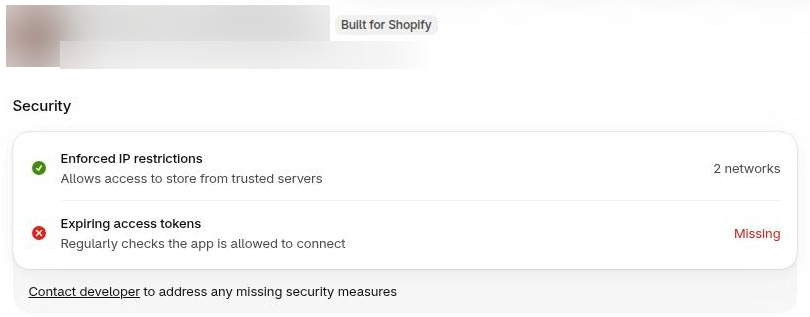
There are two checks:
Enforced IP restrictions
“Allows access to store from trusted servers.” The app’s access to your store only works when the request comes from the developer’s own registered servers (shown as the number of networks). If a token is stolen and used from somewhere else, the request is blocked. This is the protection that limits the damage from leaks like the one described above.
Expiring access tokens
“Regularly checks the app is allowed to connect.” Instead of a key that works forever, the app receives a token that expires and must be refreshed. A leaked token becomes useless quickly, and Shopify can confirm the app is still authorized every time it renews.
How to read the results
- Both green: the app meets Shopify’s current connection standards. Move on to permissions.
- One or both “Missing”: the app hasn’t adopted those measures yet. Click Contact developer (right under the section) and ask when they will. A responsive developer with a clear timeline is a good sign. No answer is also an answer.
- Missing on an app with broad access (customers, orders, checkout, theme edit): treat this as high priority. Consider pausing or replacing it until it’s fixed.
A note on badges: “Built for Shopify” signals the app meets Shopify’s quality and performance bar, but as the example above shows, it doesn’t guarantee every security measure is in place. Always check the Security section itself.
Step 3: Review “Access and permissions”
Scroll down to Access and permissions. This table lists every area of your store the app can touch, whether it can View or Edit it, and the last time it actually used that access.
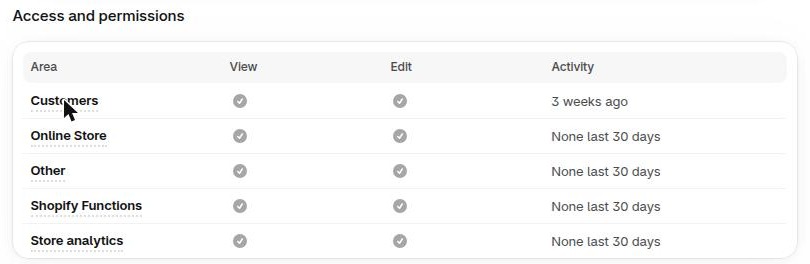
Ask one question for every row: does this app need this to do its job?
- View vs Edit. Reading data is less risky than changing it. An analytics or reporting app usually only needs View. Edit access to Customers, Orders, Products or the Online Store (theme) is powerful and should match a clear feature.
- Activity column. If an app has Edit access to an area but shows “None last 30 days”, it’s holding permissions it isn’t using.
- Customers and Orders. These contain personal data. Be strict about which apps can see them, and stricter about which can change them.
- Online Store. Edit access here can modify your theme files and storefront code, the same place malicious scripts would be added.
Some examples of what “reasonable” might look like:
| App type | Typically needs | Questionable |
|---|---|---|
| Size chart / product tabs | View Products, Online Store (to show on storefront) | Access to Customers or Orders |
| Reviews app | View Products, View Orders (to request reviews) | Edit Customers, Edit Orders |
| Analytics / reporting | View Orders, Products, Analytics | Any Edit access |
| Page builder | Online Store, View Products | Access to Customers or Orders |
| Upsell / bundles | Products, Discounts, Functions | Edit Customers |
Every app is different, so use this as a starting point for questions, not a verdict. If you can’t connect a permission to a feature you use, ask the developer to explain it. Good developers request only what they need and can explain why.
Important: merchants can’t remove individual permissions from a public app. Your options are to ask the developer to reduce their requested scopes, switch to an app that asks for less, or uninstall.
Step 4: Check the Privacy section
Right below permissions, the Privacy section shows what personal data the app can access, such as customer names, emails, phone numbers, physical addresses, IP addresses and browsing behavior.
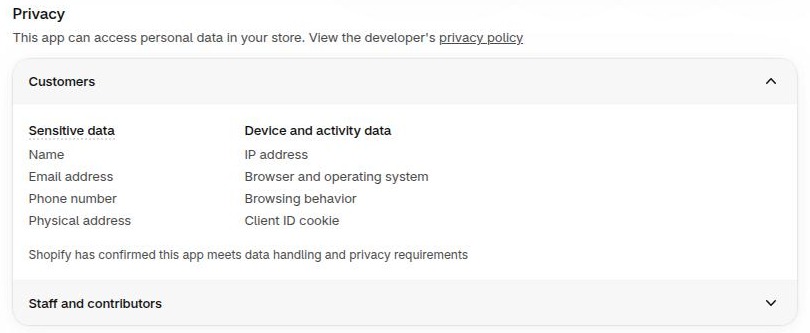
If an app can read all of your customers’ contact and address data, that data is now also exposed to that developer’s security. Ask yourself whether the feature is worth it, and read the developer’s privacy policy (linked in this section).
Step 5: Look at App history
At the bottom of the page, App history shows when the app was installed, uninstalled, and when updated permissions were accepted, and by which staff member. Watch for:
- Permission updates nobody on your team remembers approving.
- Apps that were reinstalled after being removed.
- Permission expansions that came right before a new feature you don’t use.
What to do with your findings
| What you found | Recommended action |
|---|---|
| Security all green, permissions match features | Keep it. Re-check every quarter. |
| Security measure “Missing” | Contact the developer and ask for a timeline. Escalate if the app has broad access. |
| More permissions than needed | Ask the developer to reduce scopes, or switch to a leaner alternative. |
| No activity in 30+ days, not needed | Uninstall. |
| App de-listed from the App Store or named in an incident | Uninstall, test your checkout, change related passwords. |
Uninstalling revokes the app’s access to your store. Afterwards, check Online Store → Themes → Customize → App embeds and your theme code for leftover snippets from older apps that didn’t clean up after themselves.
More ways to improve Shopify app security and protect your store
- Turn on two-step authentication for every staff account. Go to Settings → Users and make sure everyone with admin access uses it. Use an authenticator app or security key instead of SMS where possible.
- Clean up staff and collaborator accounts. Remove former employees and agencies. Give staff only the permissions their role needs, and review collaborator requests carefully.
- Secure your app dashboards too. Many apps have their own logins outside Shopify. Use unique passwords and enable 2FA there. In the checkout hijack incident, a compromised app-side account was one of the suspected entry points.
- Test your checkout like a customer. Once a week, open a private/incognito window, add a product to the cart and press Checkout. Confirm the URL is your own domain or Shopify’s checkout, not an unfamiliar domain.
- Review app embeds and custom scripts. In the theme editor, disable app embeds you don’t use. Be careful with any app feature that lets you (or anyone with access to the app account) inject “custom JavaScript”.
- Audit Customer events and pixels. Under Settings → Customer events, check which apps and custom pixels are collecting data and remove the ones you don’t need.
- Review custom apps. Under Settings → Apps → Develop apps, delete custom apps you no longer use, give the rest only the API scopes they need, and rotate their credentials if anyone who had them has left.
- Review AI and third-party tool connections. AI assistants, automation tools and reporting tools connected to your store hold tokens too. Treat them like apps.
- Secure your theme as well. Apps aren’t the only code running on your storefront. See our complete guide to Shopify theme security.
- Follow security news for apps you use. Watch the Shopify Community, your app developers’ status pages and their emails, and act quickly when an incident is announced.
- Have a response plan. If you suspect a compromise: uninstall the suspected app, test checkout, change your Shopify and app passwords, review recent orders and staff activity, and contact Shopify Support.
Shopify app security checklist
- ☐ Remove apps you don’t use
- ☐ For each app, check Security: Enforced IP restrictions and Expiring access tokens
- ☐ Contact developers about any “Missing” measures
- ☐ Review Access and permissions: flag Edit access you can’t justify
- ☐ Review Privacy: who can see customer personal data
- ☐ Check App history for unexpected permission updates
- ☐ Enable 2FA for every staff account and app dashboard
- ☐ Test checkout in an incognito window
- ☐ Repeat this audit every quarter, and after every major app update
Final thoughts
Apps are what make Shopify so powerful, and most app developers take security seriously. But every app you install extends your store’s trust to another company. A few minutes on the Security and Access and permissions screens tells you which apps have earned that trust, and which ones need a conversation, or an uninstall.
Make this Shopify app security audit a regular habit. Your customers trust your store with their data and their card details, and that trust is a lot easier to protect than to win back.