How to Add Dark Mode to Any Shopify Theme (Step-by-Step)

Many shoppers browse at night with dark mode on, and a bright white store can feel harsh on their eyes. With Hura Theme Switcher, you can add a Light, Dark and Auto mode to any Shopify theme, without editing code.
This guide walks you through every setting, from where the button appears to how to keep your logo in its original colors.
Step 1: Turn on dark mode
Open Hura Theme Switcher and click Dark mode in the app menu. Turn on Show the dark mode button on your store. Shoppers can then choose light or dark, and their choice is remembered on every page and theme.
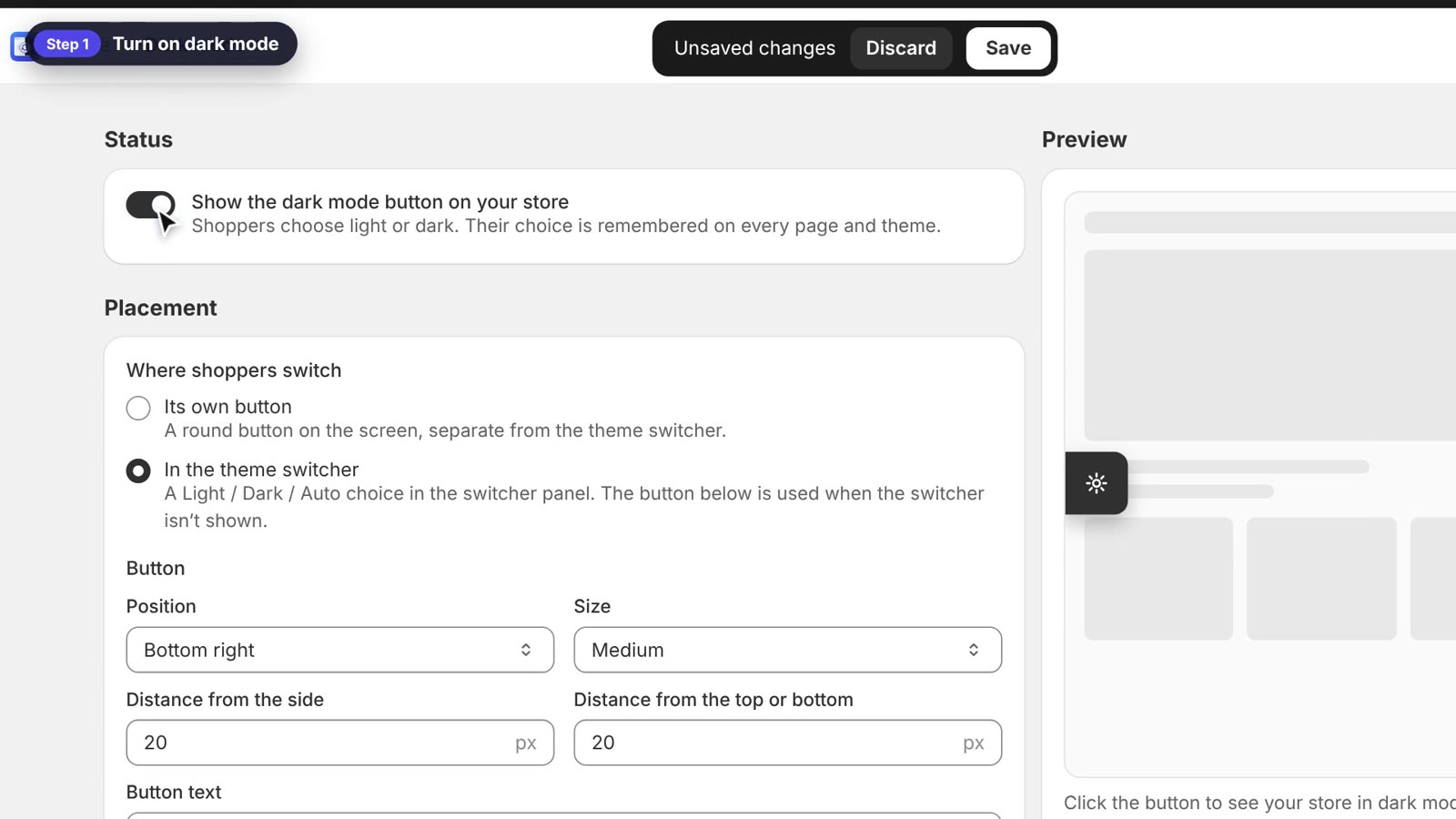
Turn on the dark mode button
Step 2: Choose where shoppers switch
Under Placement, choose one of two options:
- Its own button: a round button on the screen, separate from the theme switcher.
- In the theme switcher: a Light / Dark / Auto choice inside the switcher panel. The button is still used when the switcher isn’t shown.
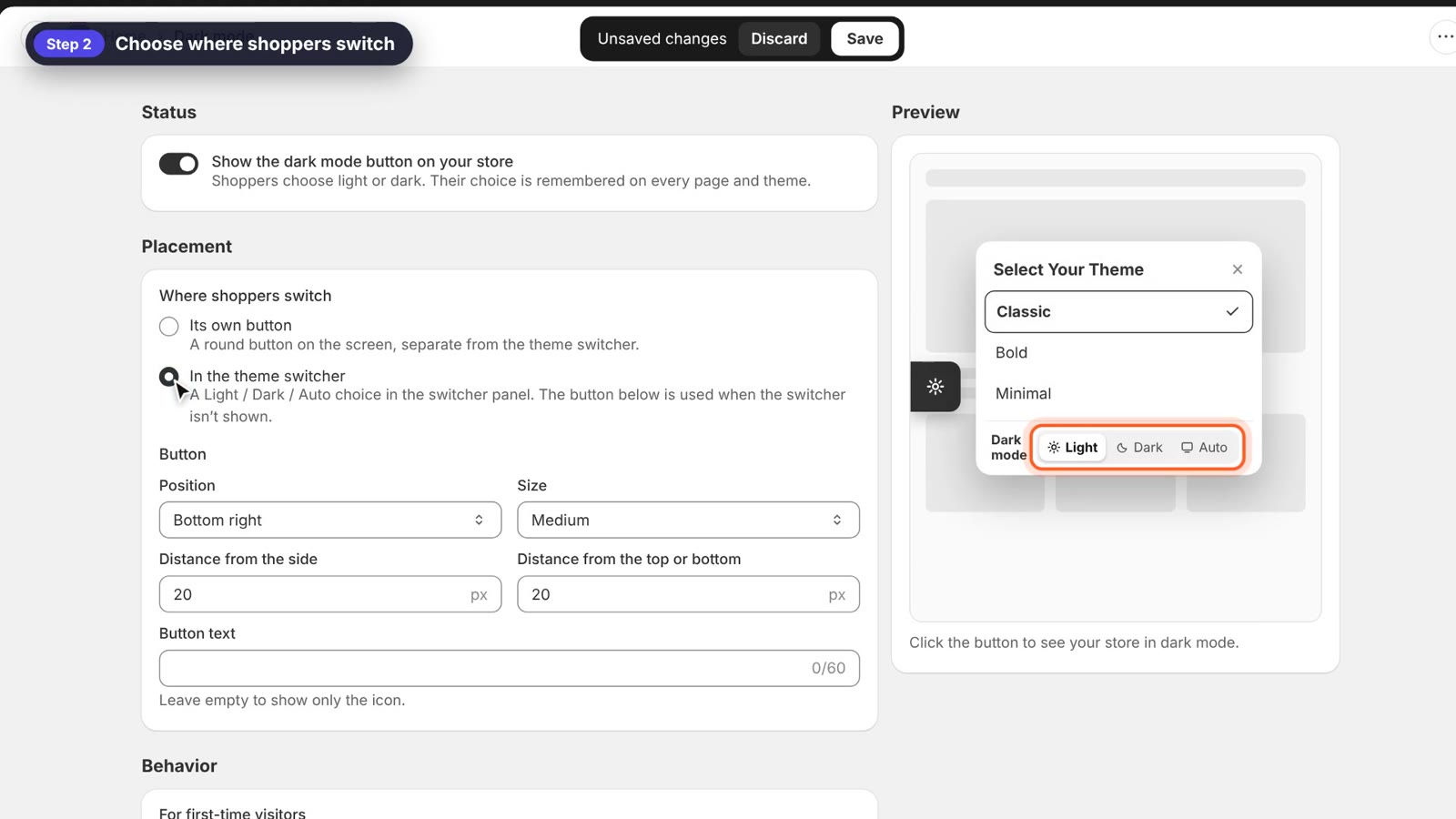
Add a Light / Dark / Auto choice to the switcher panel
Set the button’s position, size and distance from the side and from the top or bottom. You can also add button text, or leave it empty to show only the icon.
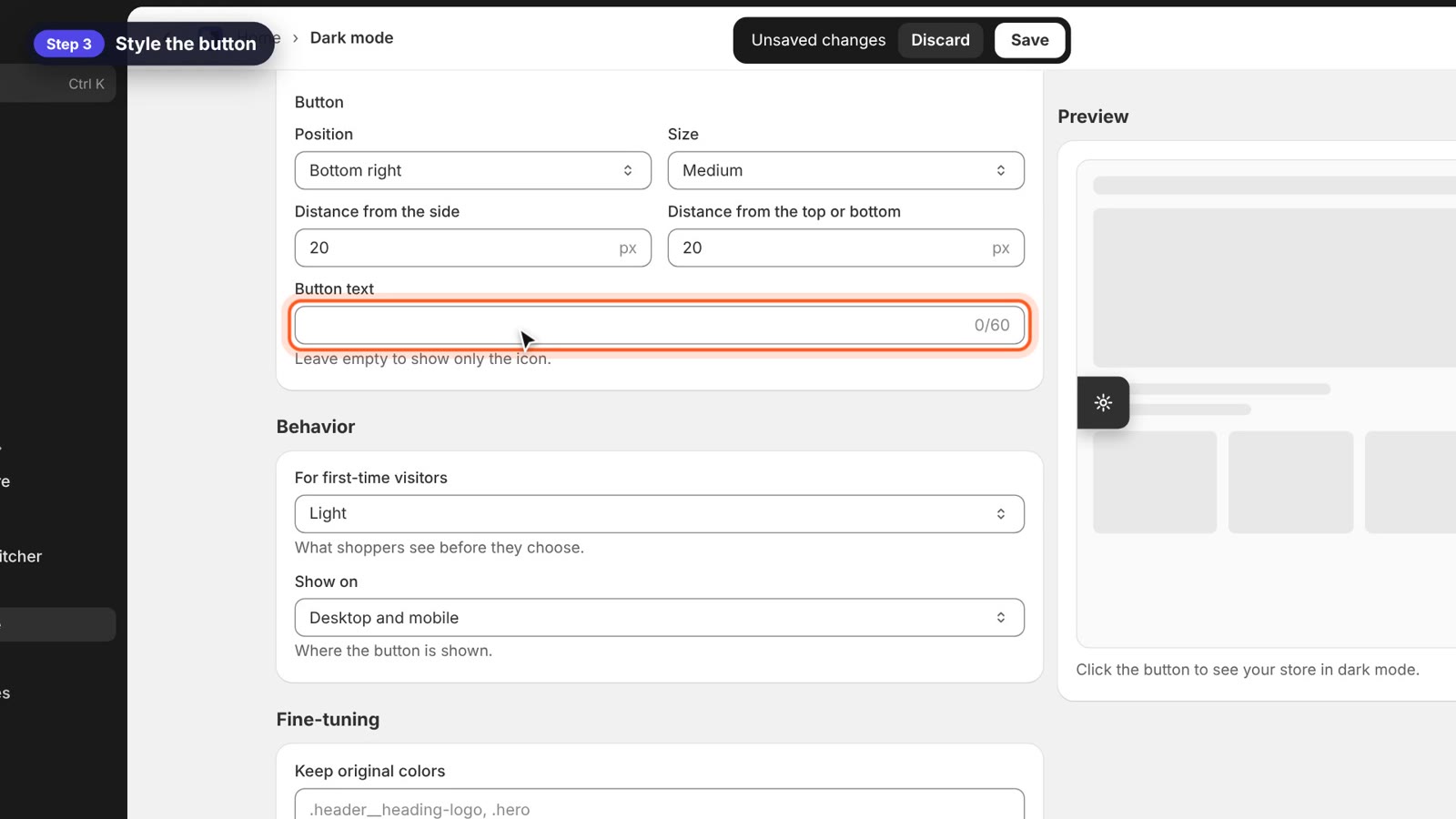
Set the button position, size and text
Step 4: Set the behavior
Under Behavior, choose what first-time visitors see before they choose: Light, Dark or Auto, which follows each shopper’s device. Then choose whether the button shows on desktop, mobile or both.
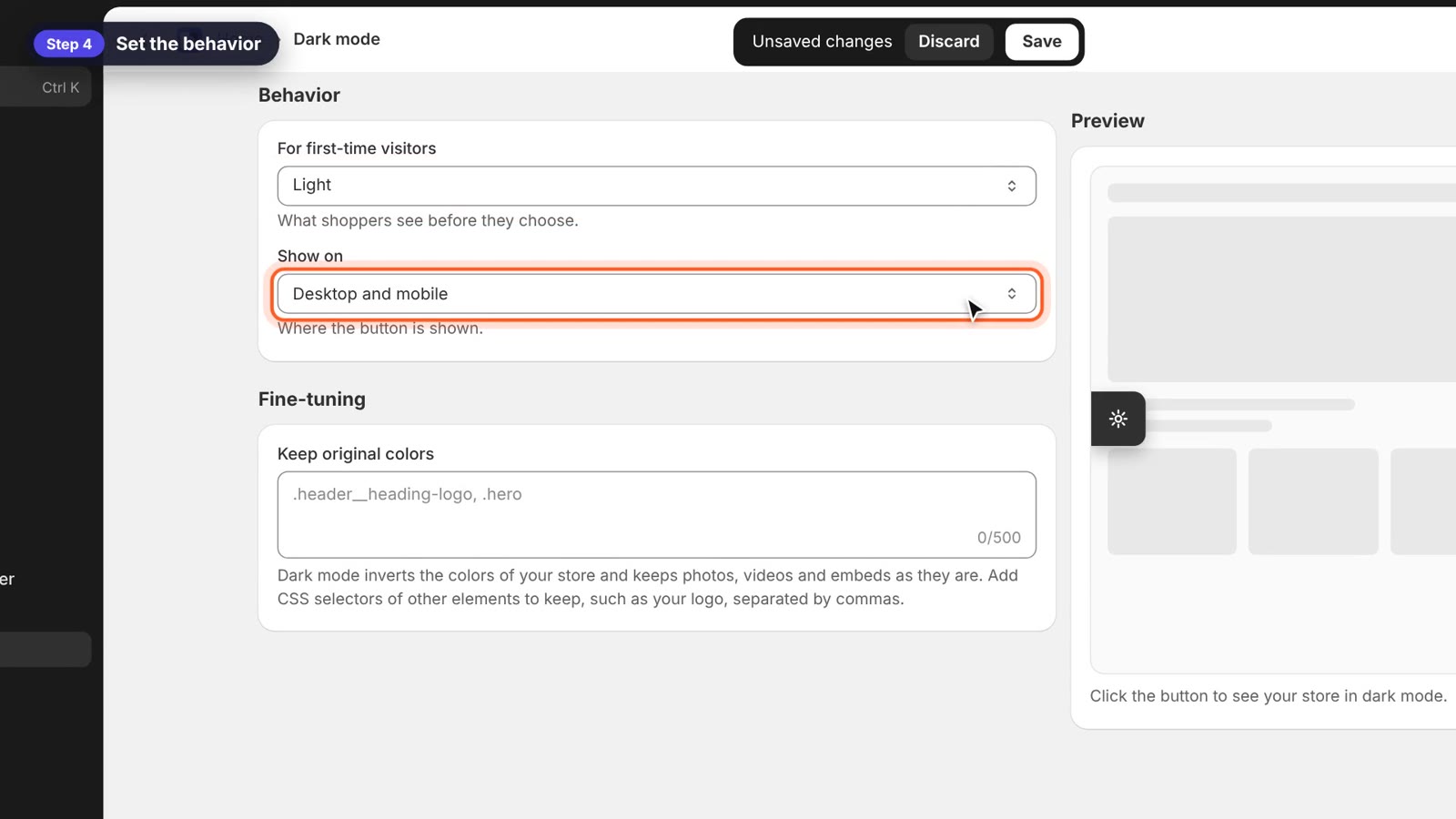
Choose what first-time visitors see
Step 5: Keep original colors where needed, then save
Dark mode inverts the colors of your store, but keeps photos, videos and embeds as they are. If another element should keep its original colors, such as your logo or an announcement bar, add its CSS selector under Keep original colors, separated by commas. For example: .site-logo, .announcement-bar.
Check the preview, then click Save.
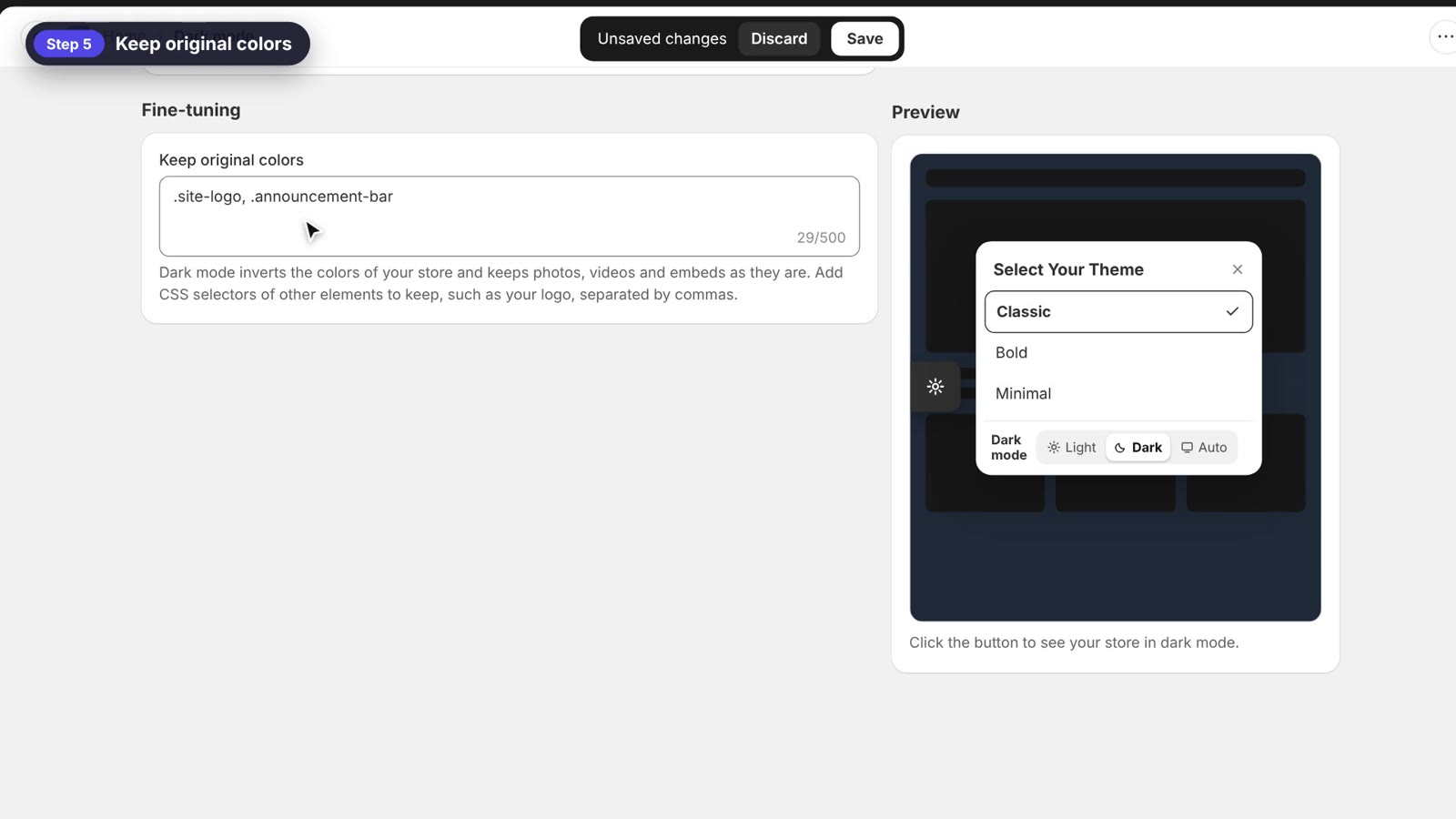
Keep your logo and other elements in their original colors
Step 6: Try it on your store
Open your store and click the dark mode button. The store switches to dark, and the choice stays as shoppers move to other pages and themes.
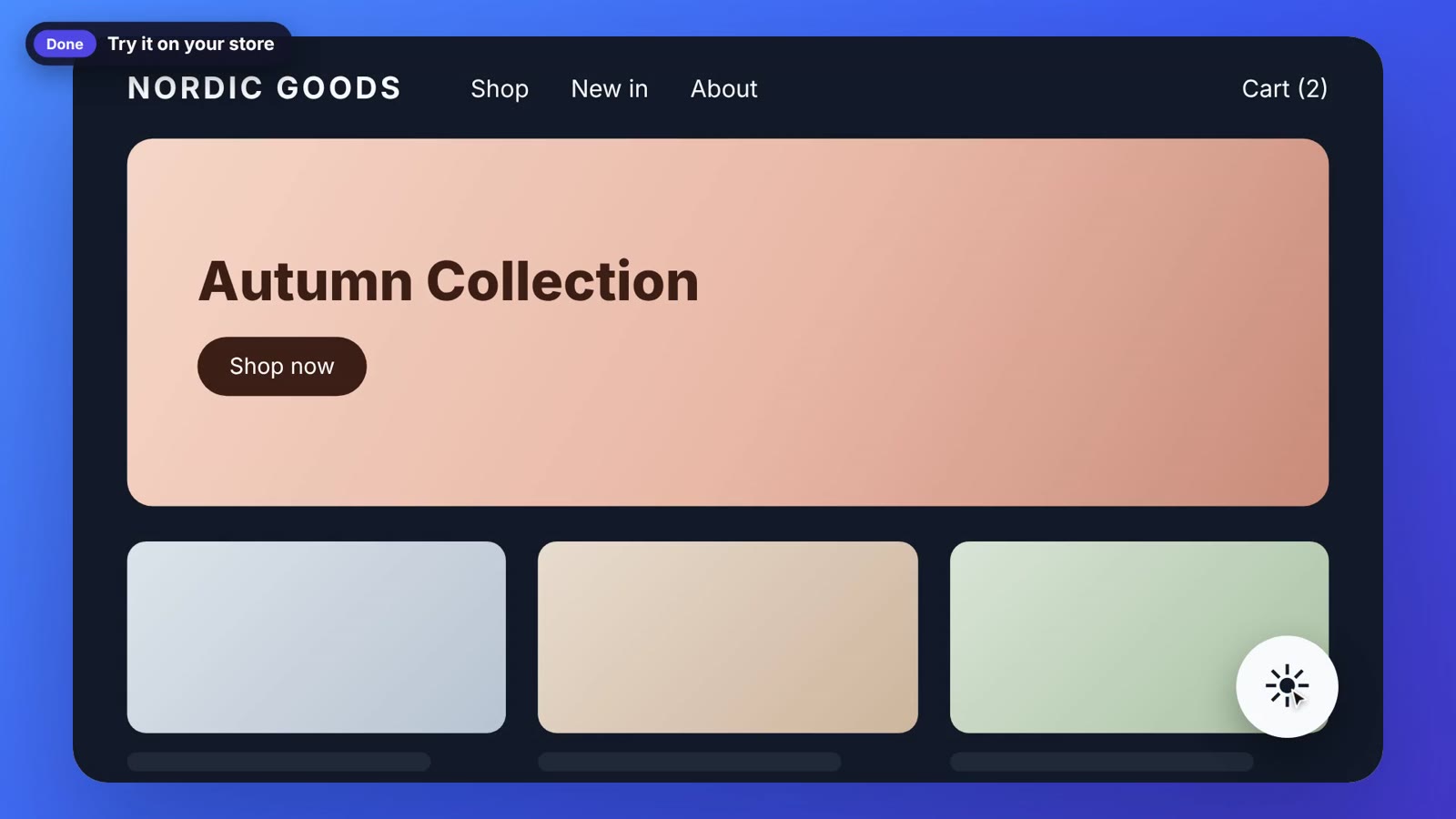
Your store in dark mode, with product photos in their true colors
FAQ
Will dark mode change my product photos?
No. Dark mode keeps photos, videos and embeds as they are.
How do I find the CSS selector of my logo?
Right-click the logo on your store, choose Inspect and copy one of its classes, starting with a dot, for example .header__heading-logo.
Do I need to edit my theme code?
No. Dark mode is part of the Theme Switcher app embed. Make sure it is turned on in your theme (Online Store → Themes → Customize → App embeds).
Give your shoppers a comfortable night view
Dark mode takes a few minutes to set up and makes late-night browsing easier on the eyes. Install Hura Theme Switcher and add dark mode to your store today.