How to Let Shoppers Switch Themes on Your Shopify Store (Step-by-Step)

Some shoppers love a bold, colorful store. Others prefer a clean and minimal one. If you have more than one theme you like, why choose? With Hura Theme Switcher, shoppers can switch between your themes right from the storefront, in one click, while your published theme stays exactly as it is.
This step-by-step guide shows you how to set it up in about five minutes: choose your themes, name them, style the switcher, and turn on the app embed.
What you need before you start
- Hura Theme Switcher installed on your Shopify store.
- At least two themes in your theme library (Online Store → Themes).
Step 1: Open Hura Theme Switcher
In your Shopify admin, go to Apps and open Theme Switcher. The home page shows the switcher status, the themes in the switcher and a short setup guide that tracks your progress.
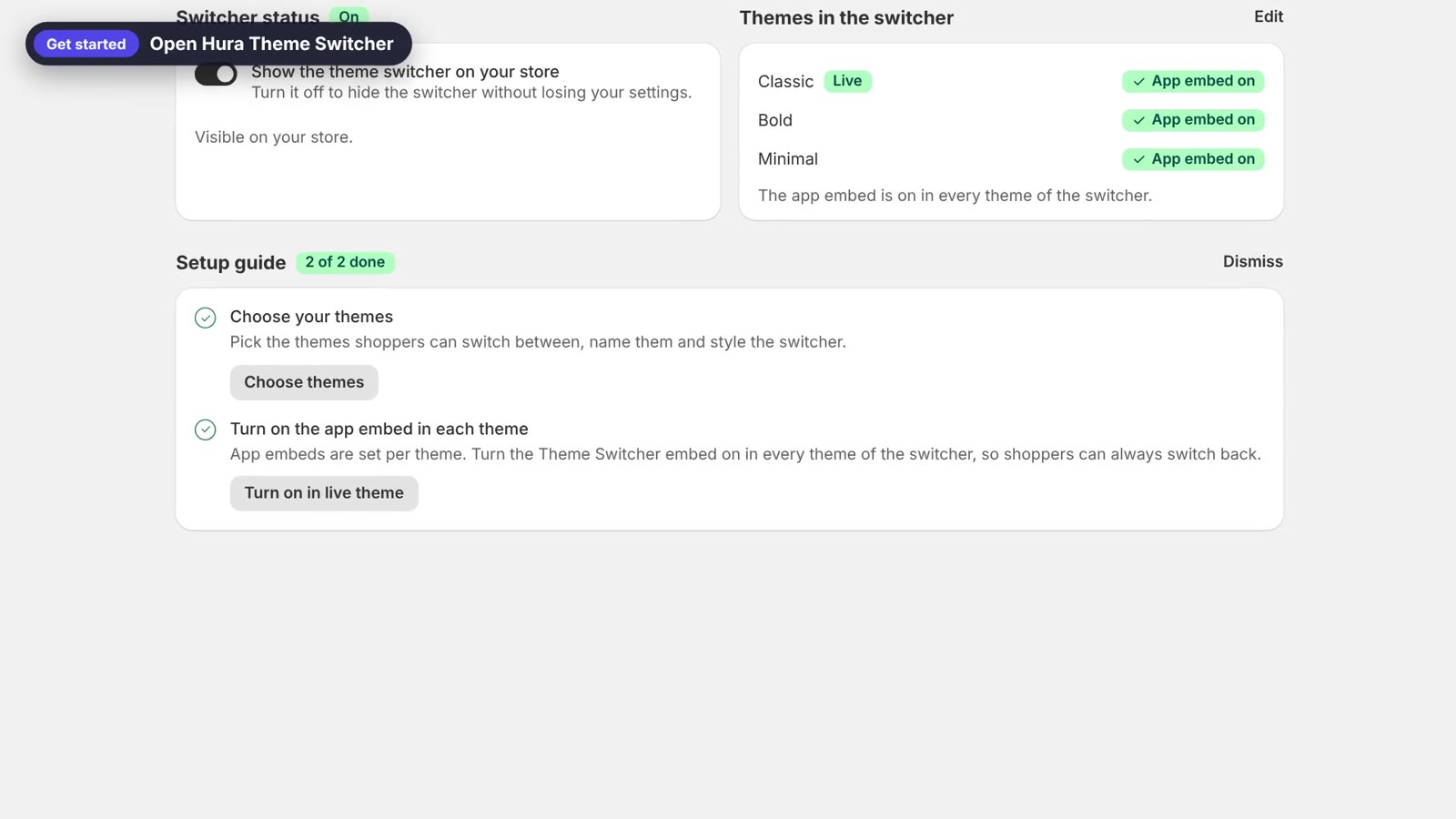
The Hura Theme Switcher home page
Step 2: Choose the themes shoppers can switch between
Click Switcher in the app menu. Under Themes, tick the themes you want to offer. You can choose from 2 to 20 themes.
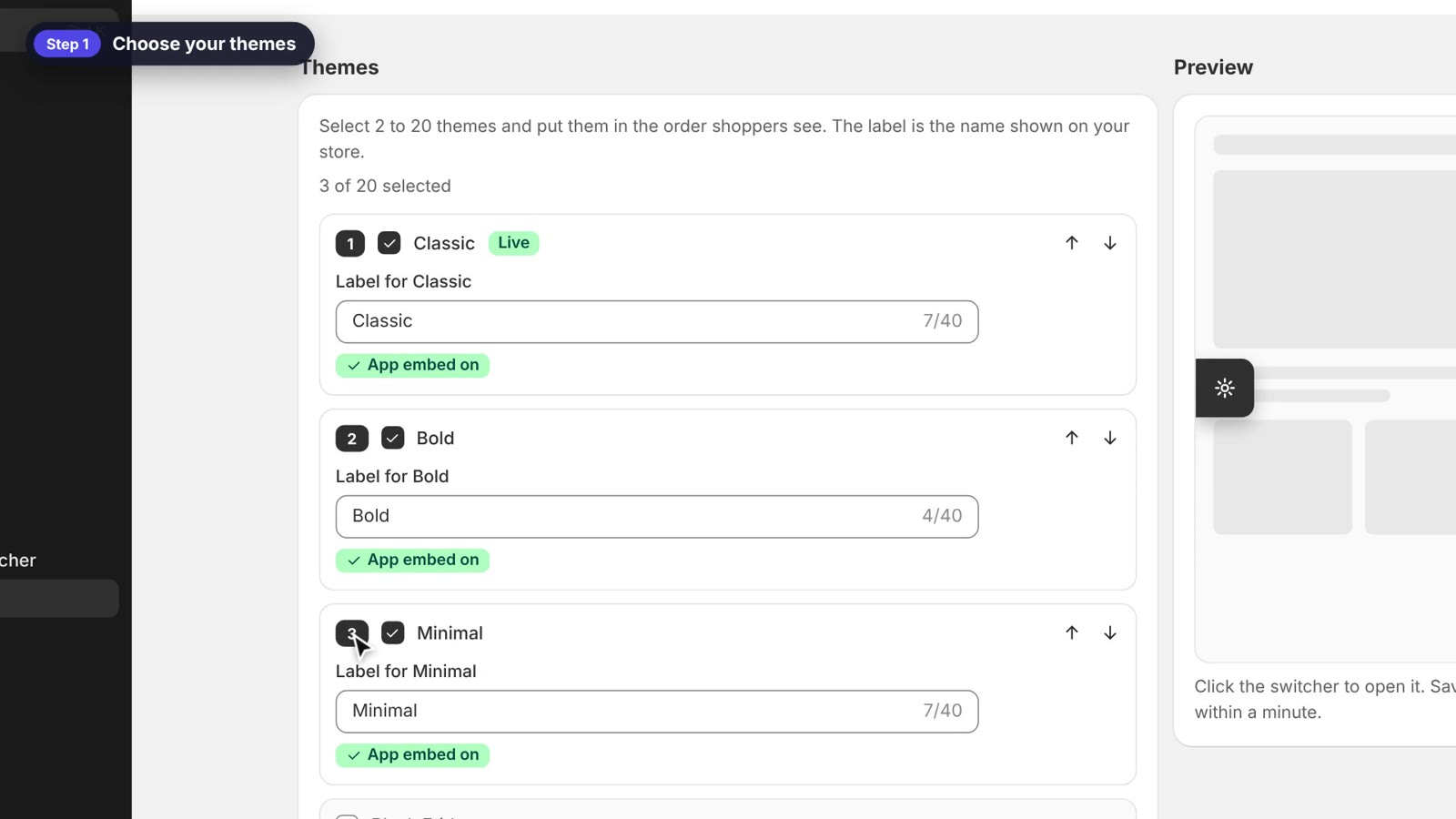
Tick 2 to 20 themes on the Switcher page
Step 3: Set the order and the labels
Use the up and down arrows to change the order shoppers see. Then type a label for each theme. The label is the name shown on your store, so pick something friendly, like “Classic”, “Bold & Bright” or “Minimal”.
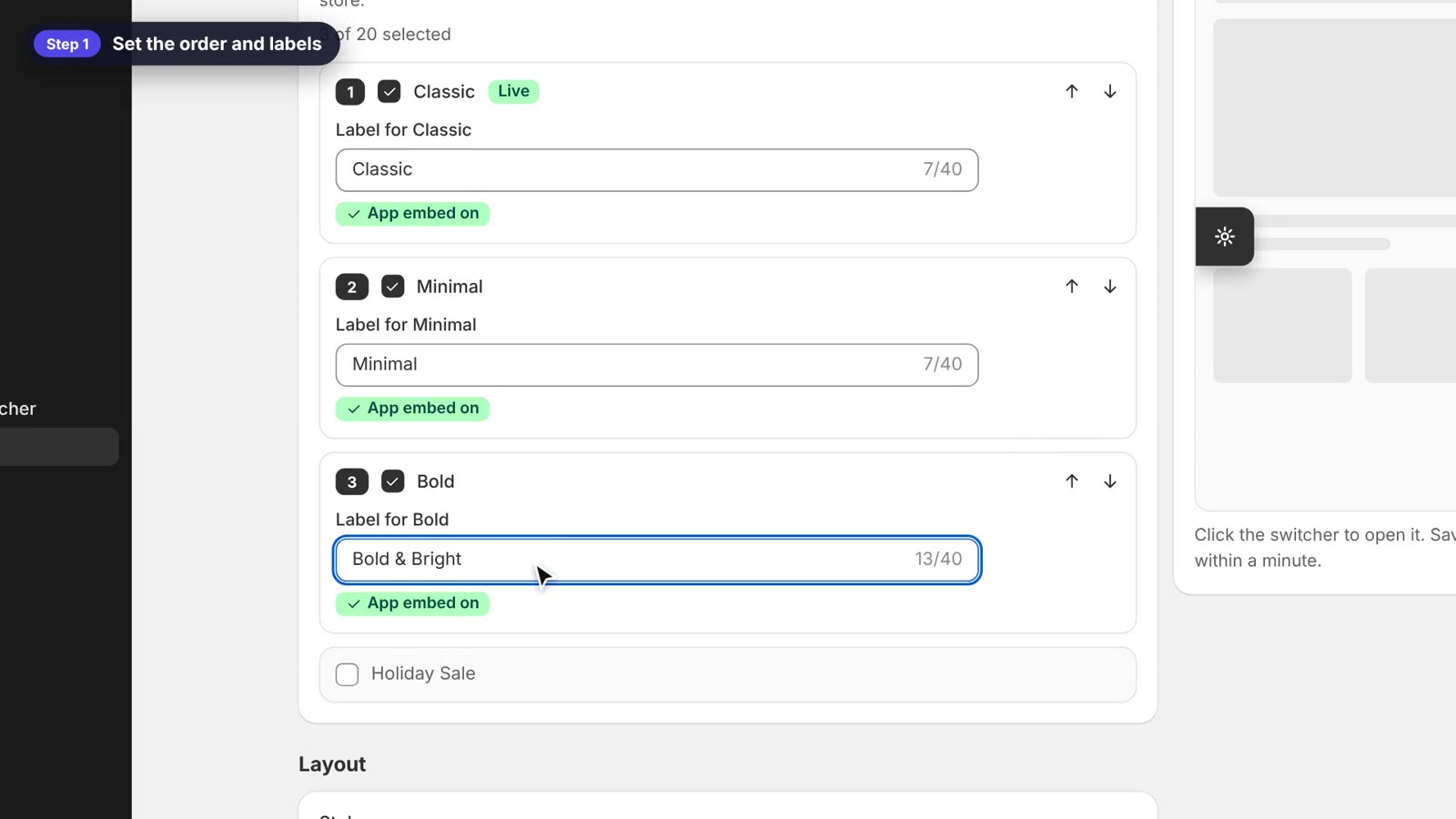
Change the order and give each theme a label
Step 4: Choose a style
Under Layout, choose how the switcher looks on your store:
- Floating button: a button in a corner of the screen that opens the list of themes.
- Side tab: a tab attached to the edge of the screen.
- Bar: all themes side by side in a bar at the top or bottom, one tap to switch.
Then set the position, the size and the distance from the edges. The preview on the right updates as you go.
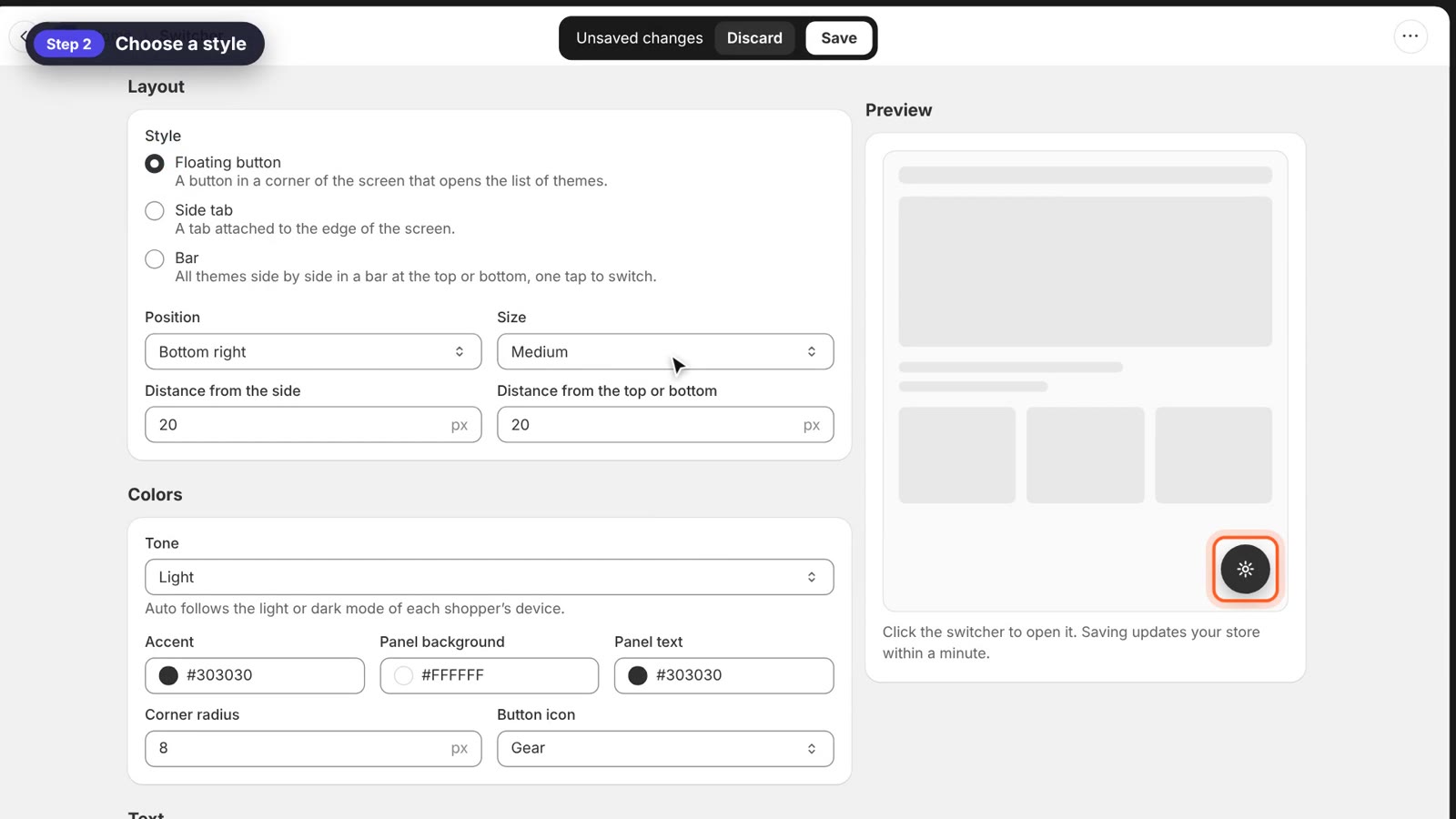
Choose a floating button, side tab or bar
Step 5: Pick colors and text, then save
Under Colors, choose a tone (Light, Dark or Auto), your accent color, the panel colors, the corner radius and the button icon. Under Text, edit the title shown above the list of themes and, if you like, add button text. Under Visibility, choose where the switcher shows and whether to highlight the theme shoppers are viewing.
When you’re happy with it, click Save. Your store updates within a minute.
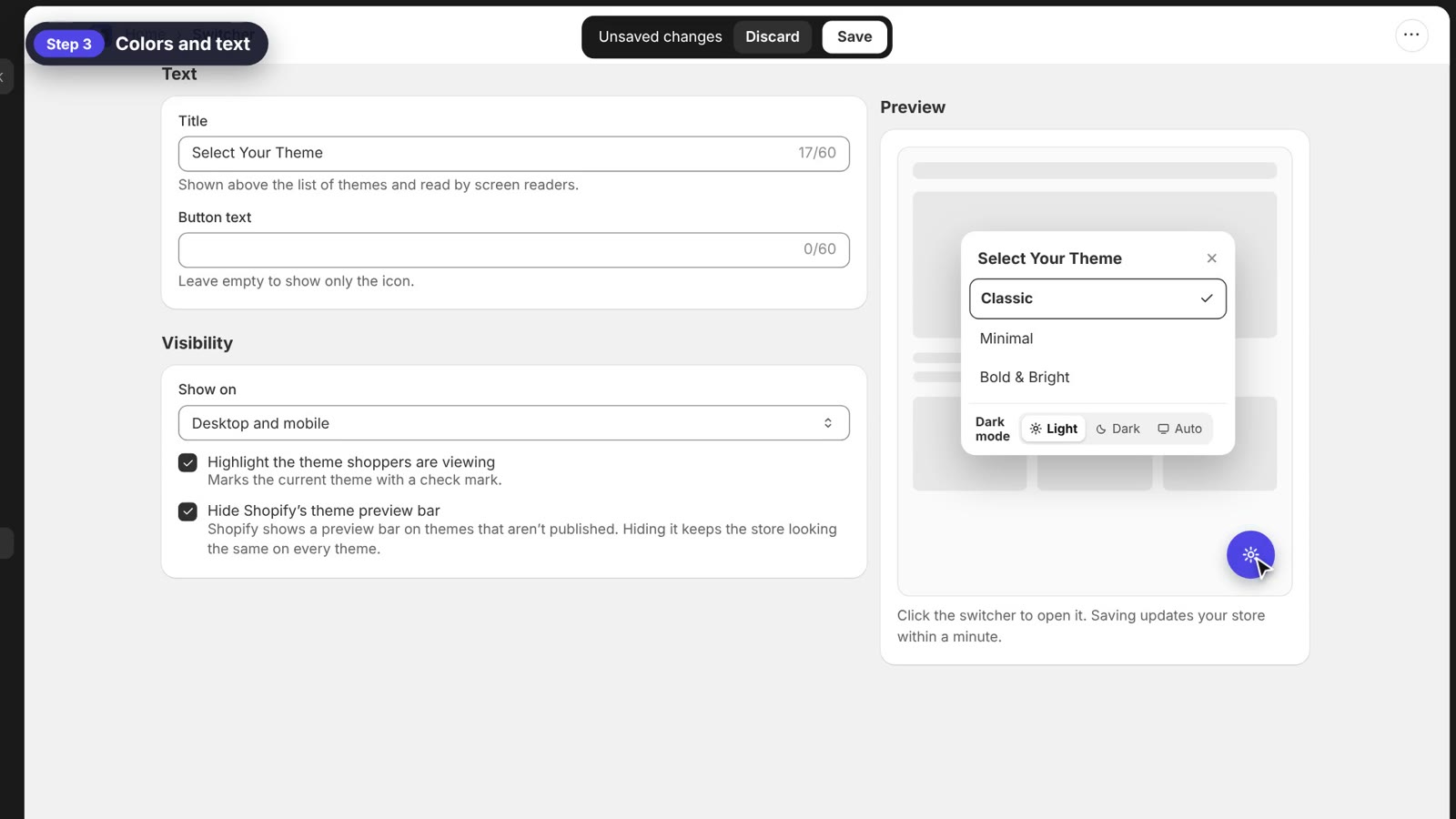
Edit colors, text and visibility with a live preview
Step 6: Turn on the app embed in every theme
App embeds are saved per theme, so the switcher must be turned on in every theme of the switcher. Otherwise, shoppers who switch to a theme without it can’t switch back.
- On the app’s home page, click Turn on next to a theme.
- In the theme editor, open App embeds and switch on Theme Switcher.
- Click Save.
- Repeat for each theme in the switcher.
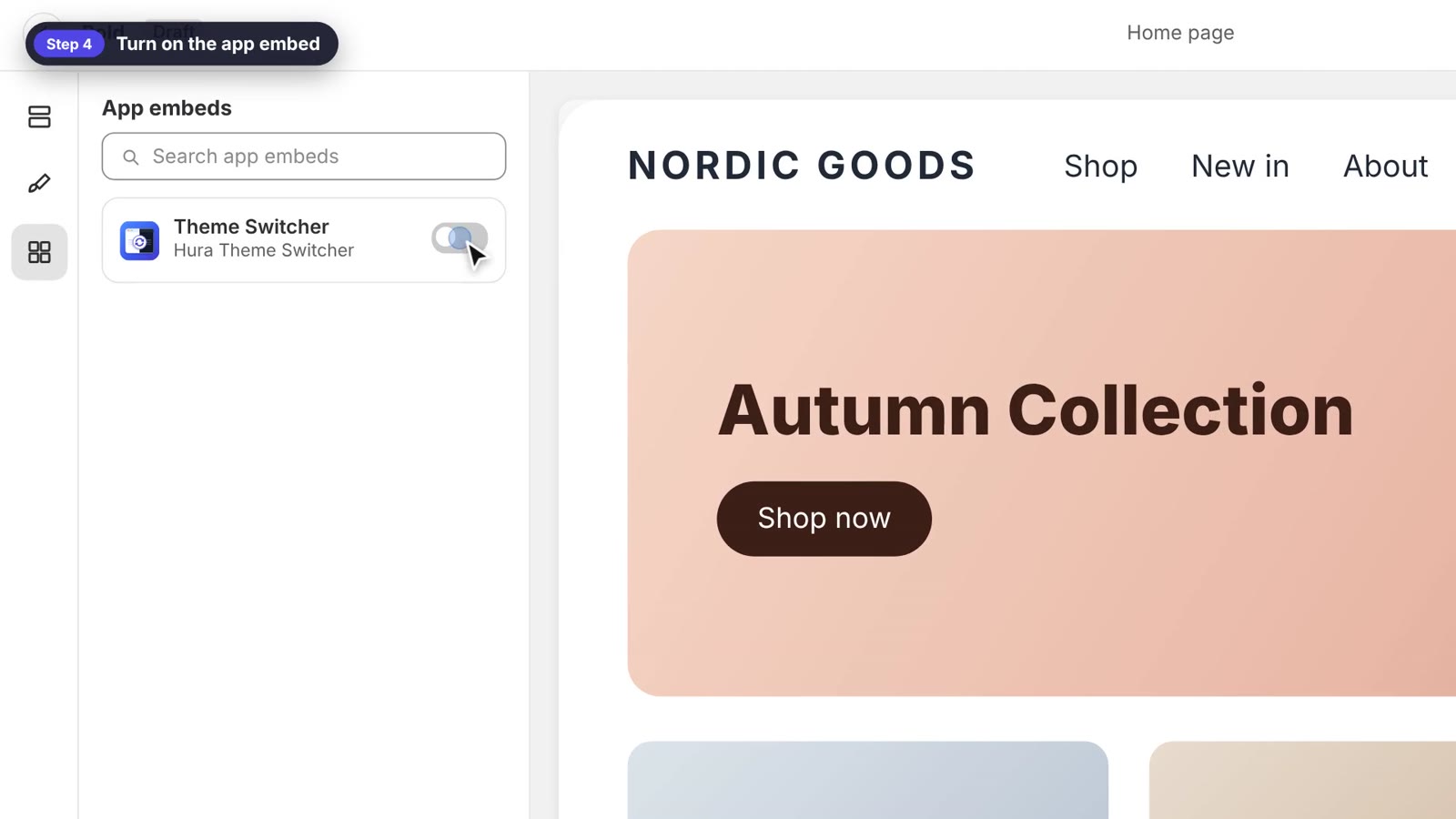
Turn on the Theme Switcher app embed in each theme
Step 7: Try it on your store
Open your store, click the switcher and choose a theme. The whole store changes to that look. Shopify keeps the chosen theme for the rest of the visit, and your published theme stays the same for everyone else.
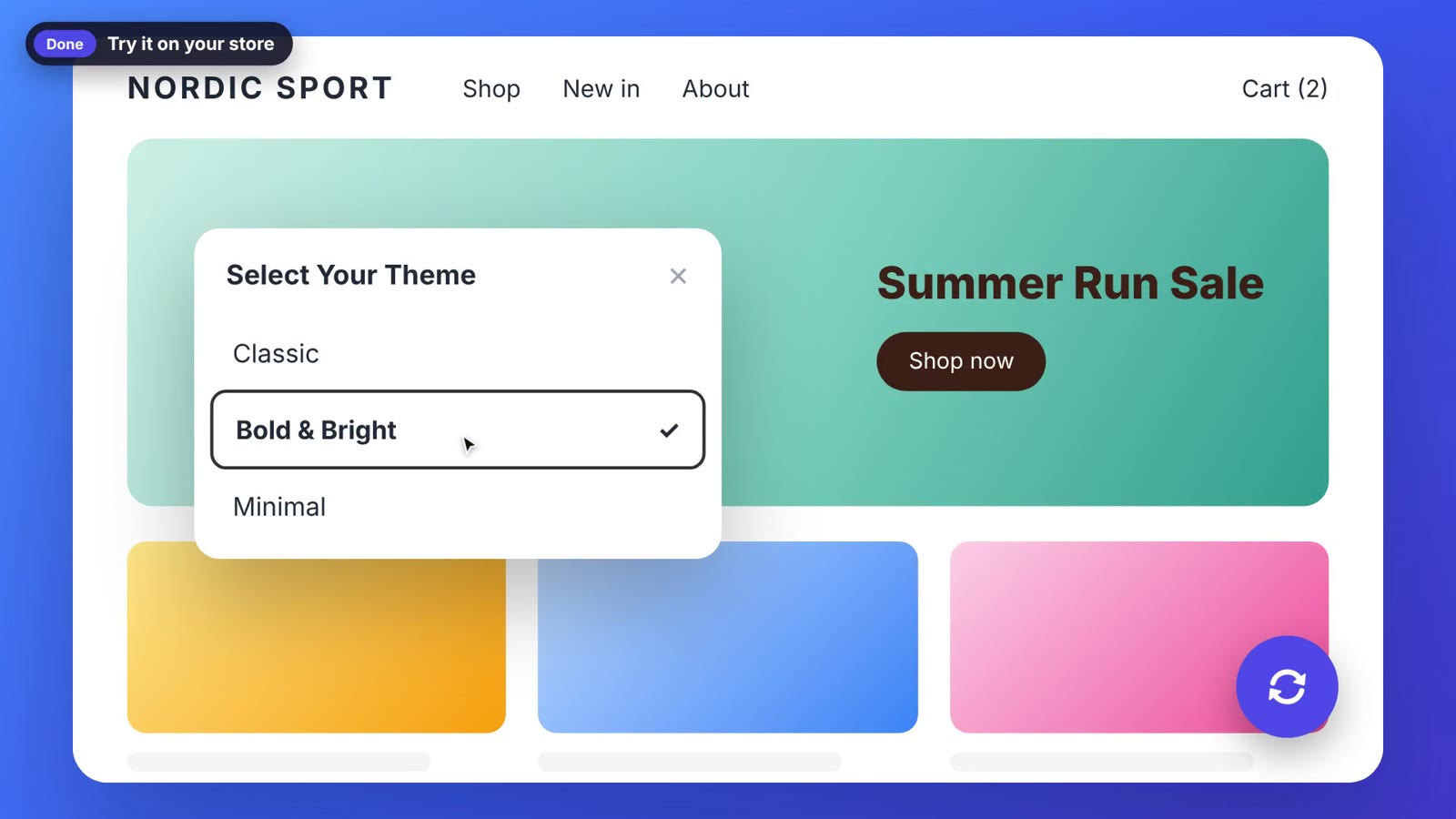
Shoppers switch themes in one click
FAQ
Does switching change my published theme?
No. The switcher opens the same page in the chosen theme with Shopify’s theme preview. Your published theme stays live for everyone else.
Will shoppers see Shopify’s preview bar?
The switcher hides it by default, so every theme looks like a normal store. You can show it again on the Switcher page.
Can I hide the switcher for a while?
Yes. Turn off Show the theme switcher on your store on the app’s home page. Your settings are kept.
Let shoppers choose their look
Your themes deserve to be seen, and your shoppers deserve a store that feels right to them. Install Hura Theme Switcher and let them pick the look they love. Next in this series: how to add dark mode and how to schedule a theme to go live automatically.