How to Block AI Agents and Scrapers on Your Shopify Store with AntiCopy

AI assistants and scrapers can now open your Shopify store, read every page and copy your product photos, descriptions and prices in seconds. That content can end up in a competitor’s store, in a cloned listing, or in an AI model’s training data. With the AntiCopy app, you can send AI agents and automated browsers away from your store and ask AI training crawlers to stay out, without writing any code.
In this tutorial, you’ll install AntiCopy, turn on its AI agent blocking, add the robots.txt rules for AI crawlers, and check that everything works. The whole setup takes about 5 minutes.
Watch the video tutorial
What AI agents can do to your store
AI agents are programs that browse websites for a person or a company. Some name themselves, like ChatGPT, Claude or Perplexity. Others run inside automated browsers such as Selenium, Playwright, Puppeteer or headless Chrome. Either way, they can:
- Read and copy your product titles, descriptions and blog posts.
- Download your product photos and videos.
- Track your prices and new products for a competitor.
- Collect your content to train AI models.
AntiCopy protects you on two levels. Its AI agents and bots settings turn away agents and automated browsers when they open a page. Its robots.txt rules ask AI training crawlers, which don’t run scripts, not to crawl your store at all.
What you need
- A Shopify store on any theme.
- The AntiCopy: Prevent Content Theft app (PRO plan, $1/month after a 3-day free trial).
- Permission to edit your theme, for the optional robots.txt step.
Part 1: Install AntiCopy and turn on the app embed
Step 1: Install the app and turn on the AntiCopy app embed
Install AntiCopy from the Shopify App Store and start your plan. AntiCopy works through a theme app embed, so it must be on in your live theme. In the app’s Setup guide, click Turn on app embed. The theme editor opens on App embeds: (1) turn on AntiCopy, then (2) click Save.

Step 2: Open Content protection
Go back to the AntiCopy dashboard. The Theme Extension card should now show Active, which means AntiCopy is running on your store. In the Content protection card, click Manage.

Part 2: Block AI agents and automated browsers
Step 3: Turn on Block AI agents and Block automated browsers
Scroll down to the AI agents and bots section and turn on the options you want:
- Block AI agents sends away AI assistants and crawlers that name themselves, such as ChatGPT, Claude, Perplexity and Bytespider.
- Block automated browsers sends away browsers driven by a program (Selenium, Playwright, Puppeteer, headless Chrome), which scrapers and many AI agents use.
Then (3) click Save in the bar at the top of the page.

Good to know: search engines (Google, Bing and others), link previews, speed tests and Shopify itself are never blocked, so your SEO and social sharing keep working. Keep in mind that blocking agents also turns away shoppers who buy through an AI assistant, so choose the options that fit your business.
Part 3: Ask AI training crawlers to stay away
Crawlers that collect content to train AI models, like GPTBot, ClaudeBot and CCBot, don’t run scripts, so no app can block them in the browser. Most of them follow your store’s robots.txt file, and AntiCopy gives you ready-made rules for it. You only need to add them once.
Step 4: Copy the robots.txt rules
On the same Content protection page, find Ask AI crawlers to stay away. (1) Click Copy robots.txt rules, then (2) click Open theme code to open the code editor of your live theme.

Step 5: Create the robots.txt.liquid template and paste the rules
In the code editor, (1) add a new template named robots.txt.liquid in the templates folder. (2) Replace its content with the rules you copied, and (3) click Save. If your theme already has a robots.txt.liquid file, paste only the AntiCopy part at the end so you keep your own rules.
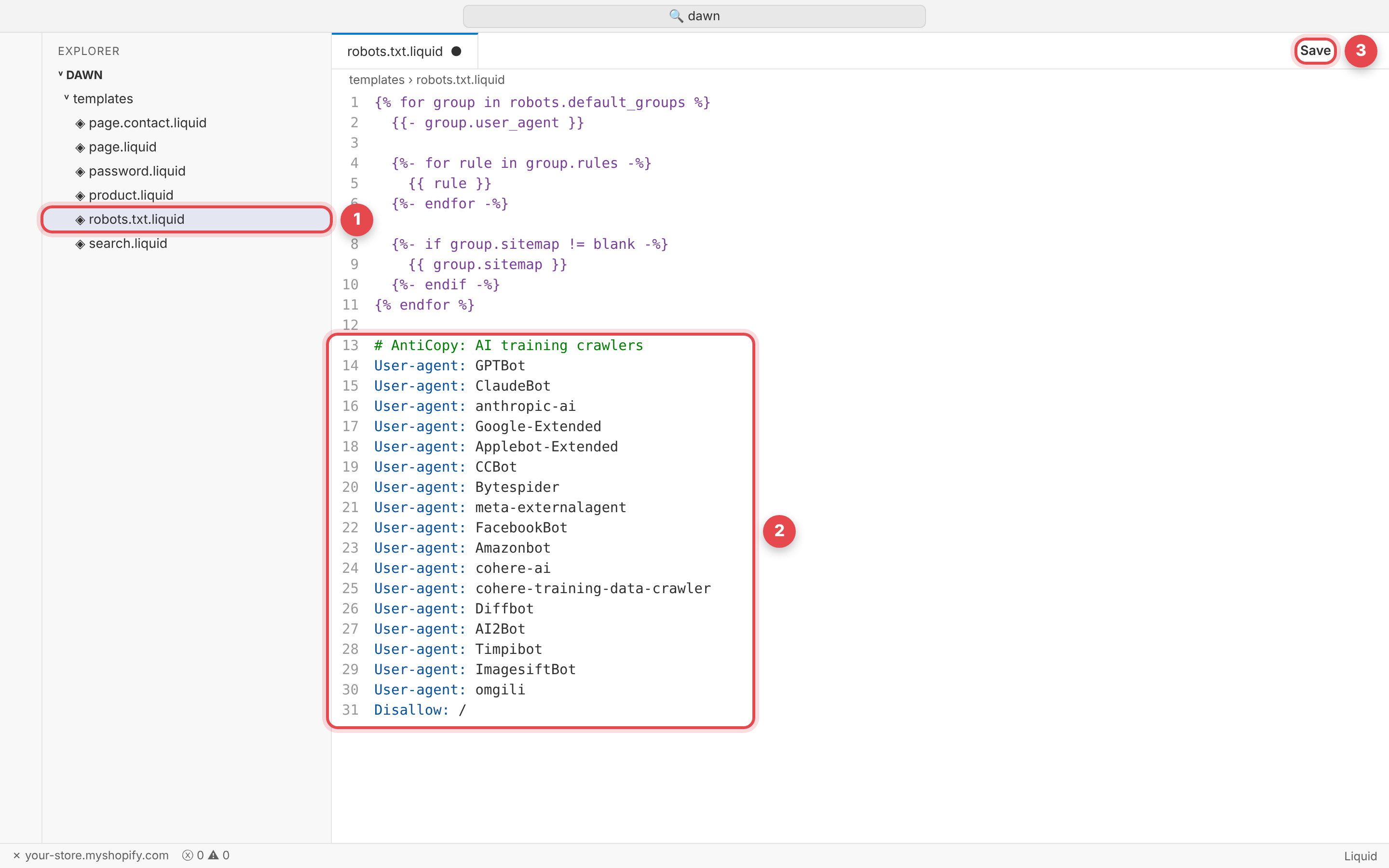
The rules keep Shopify’s default robots.txt and add one group for AI training crawlers:
1 2 3 4 5 6 7 8 9 10 11 12 13 14 15 16 17 18 19 20 21 22 23 24 25 26 27 28 29 30 31 | {% for group in robots.default_groups %} {{- group.user_agent }} {%- for rule in group.rules -%} {{ rule }} {%- endfor -%} {%- if group.sitemap != blank -%} {{ group.sitemap }} {%- endif -%} {% endfor %} # AntiCopy: AI training crawlers User-agent: GPTBot User-agent: ClaudeBot User-agent: anthropic-ai User-agent: Google-Extended User-agent: Applebot-Extended User-agent: CCBot User-agent: Bytespider User-agent: meta-externalagent User-agent: FacebookBot User-agent: Amazonbot User-agent: cohere-ai User-agent: cohere-training-data-crawler User-agent: Diffbot User-agent: AI2Bot User-agent: Timpibot User-agent: ImagesiftBot User-agent: omgili Disallow: / |
You can remove a line if you want to allow a specific crawler. For example, Google-Extended only controls whether Google may use your content for its AI models; it doesn’t affect your Google Search ranking.
Step 6: Check your robots.txt
Open your-store.com/robots.txt in your browser. The AntiCopy rules should appear at the end of the file.

Part 4: Test and customize
What an AI agent sees
We tested the setup by opening a store as ChatGPT’s agent (ChatGPT-User) and as an automated browser. Both were sent straight to the blocked page and never saw the products, while a normal visitor and Googlebot could browse the store as usual.

Customize the blocked page
AI agents are sent to the same page as visitors blocked by the country blocker. To change it, open Country blocker in AntiCopy and scroll to Page for blocked visitors. (1) Edit the Message (HTML); HTML and styles are allowed, while scripts and forms are removed. Leave it empty to use the default page, or click Start from the default page to edit it. (2) Click Preview page to check the result, then save.

Review blocked AI agents
Open Blocked visits in AntiCopy to see the agents that were turned away. Each one is listed as AI agent or bot with its name (for example ChatGPT-User) or the way it was detected (webdriver or headless), along with the page and time.

Troubleshooting
- AI agents are not blocked. Check that the Theme Extension card shows Active and that Protect my online store is on in the AntiCopy dashboard. If you changed themes, turn on the app embed again in the new theme.
- The AntiCopy rules don’t show in robots.txt. Make sure the file is named exactly robots.txt.liquid, sits in the templates folder of your live theme, and is saved.
- An agent still got through. Agents that run in a person’s own browser and don’t name themselves can’t always be detected. Turn on both options in AI agents and bots for the best coverage.
FAQ
Will blocking AI agents hurt my SEO?
No. Search engines such as Google and Bing, link previews, speed tests and Shopify itself are never blocked by these settings.
What is the difference between blocking AI agents and the robots.txt rules?
The AI agents and bots settings turn away agents that open your pages in a browser. The robots.txt rules are a request to AI training crawlers, which don’t run scripts, not to crawl your store. Use both for full coverage.
Can customers who shop with an AI assistant still buy from me?
Not when Block AI agents is on, because the assistant is sent away. If many of your customers shop that way, you can leave that option off and keep only the robots.txt rules.
Do I need to know how to code?
No. Turning on the options takes a few clicks, and the robots.txt step is a copy and paste.
Wrapping up
Your product photos, descriptions and prices take time and money to create. With AntiCopy, you can turn away AI agents and automated browsers, ask AI training crawlers to stay out, and see every agent that was blocked, all in a few minutes. Install AntiCopy from the Shopify App Store and protect your store today.