How to Add a WhatsApp, Messenger and Zalo Chat Button to Shopify with Hura Social Chat

Shoppers who have a quick question about sizes, delivery or stock rarely go looking for your contact page. They want to ask it where they already chat: WhatsApp, Messenger, Zalo, Instagram or a simple text message. Hura Social Chat adds one floating chat button to your Shopify store that opens a conversation on the channel each shopper prefers.
In this guide, you will learn how to set up Hura Social Chat step by step: turn on the app embed, choose your channels, match the button to your brand, add a greeting, control where the button appears and test it on your storefront.
What Hura Social Chat does
Hura Social Chat places a chat button in the corner of your store. It supports eight channels:
- Messenger, WhatsApp, Instagram, Telegram and Zalo
- Call us, Text us (SMS) and Email us
With one channel turned on, the button opens that channel directly. With two or more, shoppers tap the button and pick a channel from a short menu. The app runs as a theme app embed, so it never edits your theme code, sets no cookies and stores no customer data.
Note for former Hura FB Messenger users: Facebook shut down its Chat Plugin on May 9, 2024, so no app can show the old Facebook chat window on your store any more. Hura Social Chat (formerly Hura FB Messenger) now opens a Messenger conversation with your Page in the Messenger app on mobile or on messenger.com on desktop. Your messages still arrive in your Page inbox.
Before you start
- Install Hura Social Chat from the Shopify App Store. The app is free.
- Have your contact details ready: your Facebook Page username, WhatsApp number with country code, Instagram or Telegram username, Zalo phone number or Official Account ID, phone number and support email.
Step 1: Turn on the app embed
The chat button is added to your storefront through a theme app embed, so you do not need to touch any code.
- In your Shopify admin, go to Online Store > Themes and click Customize on your live theme.
- Click the App embeds icon in the left sidebar.
- Find Chat button (Hura Social Chat), switch it on and click Save.
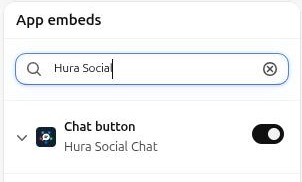
Turn on the Chat button app embed in your theme editor
Back in the app, the App embed card at the top of the Chat button page shows Active once the embed is on in your live theme.
Step 2: Choose your channels
Open Apps > Hura Social Chat. In the Channels card, tick each channel you want to offer and fill in the field that appears under it:
- Messenger: your Page username or link, for example
facebook.com/yourpageor justyourpage. If your Page has no username, enter its numeric Page ID from your Page’s About section. - WhatsApp: your full number with country code, for example
+1 555 123 4567. - Instagram and Telegram: your username.
- Zalo: the phone number of your Zalo account or your Official Account ID.
- Call us and Text us: the phone number customers should call or text.
- Email us: your support email address.
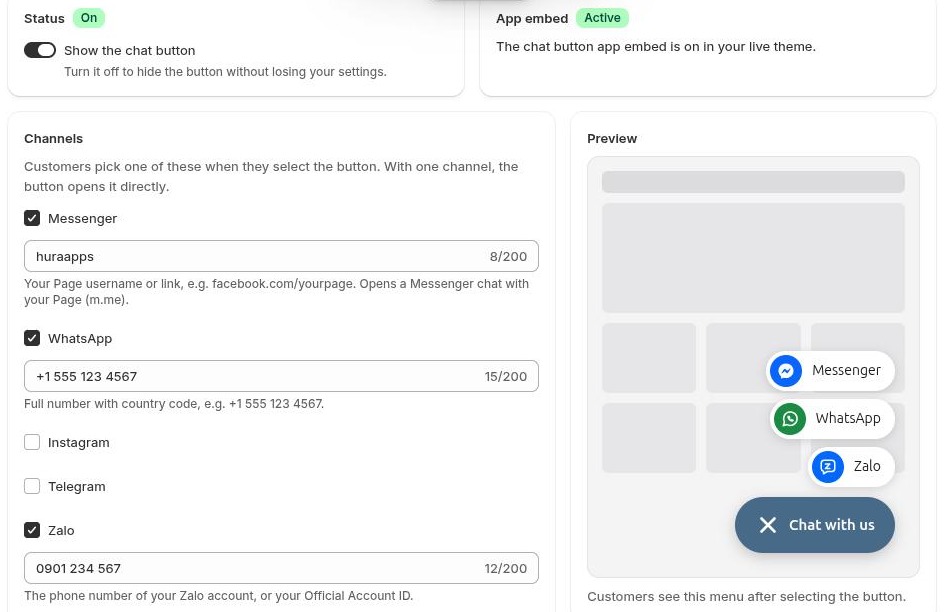
Tick a channel and enter its contact details. The preview updates as you type.
The Preview on the right shows exactly what shoppers will see. With several channels, it shows the menu that opens after a shopper selects the button.
Step 3: Customize the appearance
In the Appearance card, make the button match your store:
- Position: bottom right or bottom left.
- Distance from the side and Distance from the bottom: move the button in pixels, for example to keep it clear of another floating widget.
- Button color: pick your brand color.
- Button text: the label next to the icon, such as “Chat with us”. Leave it empty to show a compact icon-only button.
Step 4: Add a greeting
A short greeting next to the button invites shoppers to start the conversation. Type it in the Greeting field (up to 160 characters) and set Show the greeting after to the number of seconds to wait. The greeting appears once per visit. Leave the field empty if you do not want a greeting.
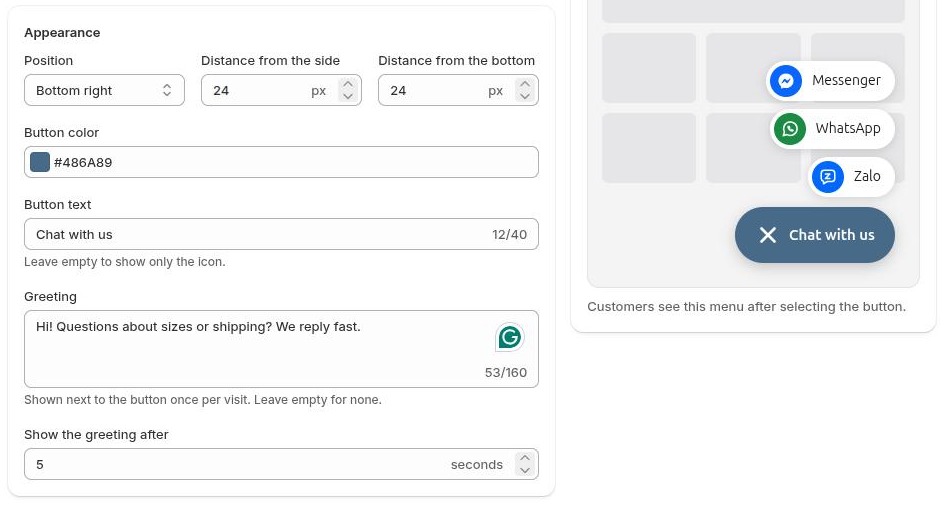
Set the position, color, button text and greeting
In the Visibility card:
- Devices: show the button on desktop and mobile, or on only one of them.
- Pages: keep All pages, or select Only these pages and tick the page types you want: home page, product pages, collection pages, collections list, cart, pages, blogs, blog posts or search.
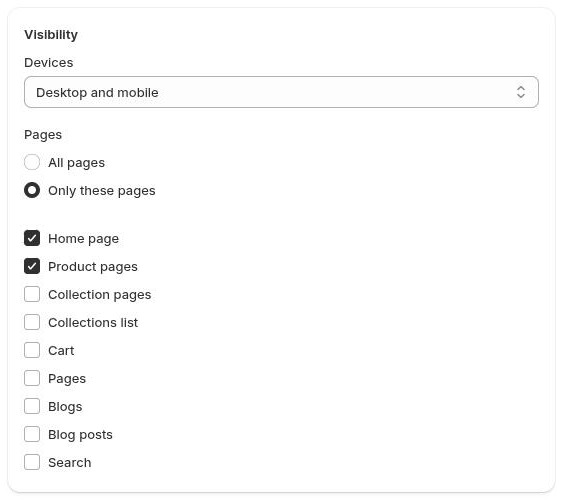
Show the button only on the devices and pages you choose
Click Save in the bar at the top of the page to save your channels and settings. Then switch on Show the chat button in the Status card. The status changes to On.
The switch is available once at least one channel has its contact details filled in. If the preview says “Turn on a channel and enter its contact to show the button”, go back to Step 2.
- Click View store in the top-right corner of the app.
- Check that the button appears in the corner you chose and that the greeting shows after the delay you set.
- Select the button and try each channel. On a phone, WhatsApp, Messenger, Zalo and Telegram open in their apps. On a computer, they open in a new tab or the desktop app.
If the button does not appear, check that the app embed is on in your live theme (Step 1), that Show the chat button is on, and that the current page and device are included in your visibility settings.
Switch off Show the chat button in the Status card. The button disappears from your store, and all your channels and settings stay saved, so you can turn it back on at any time with one click.
Change the app language
The app admin is available in 21 languages, including English, Vietnamese, Chinese, Japanese, Korean, French, German and Spanish. By default it follows your Shopify admin language. To use another language only in this app, open Apps > Hura Social Chat > Preferences, choose a language under Language of the app and click Save.
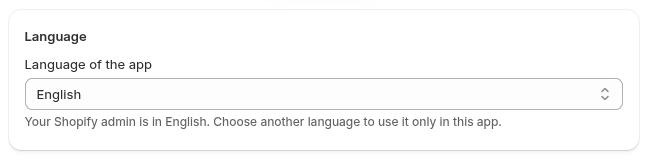
Choose the language of the app in Preferences
Frequently asked questions
Do I need to edit my theme code?
No. Turn the app embed on or off in the theme editor. When you uninstall the app, Shopify removes the button from your theme automatically.
No. The button loads no third-party scripts, only a small stylesheet, plus a tiny script when there are several channels or a greeting. Nothing is loaded on pages where the button is hidden.
Does the app collect customer data?
No. The button is a set of links. The app stores no customer data, sets no cookies and tracks nothing.
Messenger does not open my Page. What should I enter?
Enter the username from your Page’s address: facebook.com/yourpage becomes yourpage. If your Page has no username, enter its numeric Page ID, shown in your Page’s About section.
Conclusion
In a few minutes, Hura Social Chat gives every visitor a fast way to reach you on the app they already use, without code, cookies or tracking. Install Hura Social Chat for free and start turning questions into conversations.