How to Redirect Customers After Login, Signup and Logout on Shopify

By default, Shopify sends customers to their account page every time they sign in or create an account. That page is often empty for new customers and rarely the best place for returning shoppers. With Hura Redirect After Login, you decide where customers go after they sign in, sign up or sign out, without touching your theme code.
In this guide, you will learn how to set up the app step by step, choose the right destination for each customer action, and test your redirects on your storefront.
What Hura Redirect After Login does
The app lets you set a separate destination for three moments in the customer journey:
- After sign-in: send returning customers to the page they were on, or to any page you choose.
- After sign-up: welcome new customers with a dedicated landing page, perk, or collection.
- After sign-out: keep shoppers browsing, or send them to another website.
It works with both new customer accounts and legacy customer accounts, and it keeps working when you upgrade from one to the other.
Before you start
- Install Hura Redirect After Login from the Shopify App Store.
- Create the pages you want to send customers to, for example, a welcome page at
/pages/welcome. - Make sure customer accounts are turned on in Settings > Customer accounts.
Step 1: Turn on the app embed
The app runs on your storefront through a theme app embed, so you do not need to edit any code. In your Shopify admin, go to Online Store > Themes > Customize, then open App embeds in the left sidebar. Turn on Redirect After Login and click Save.
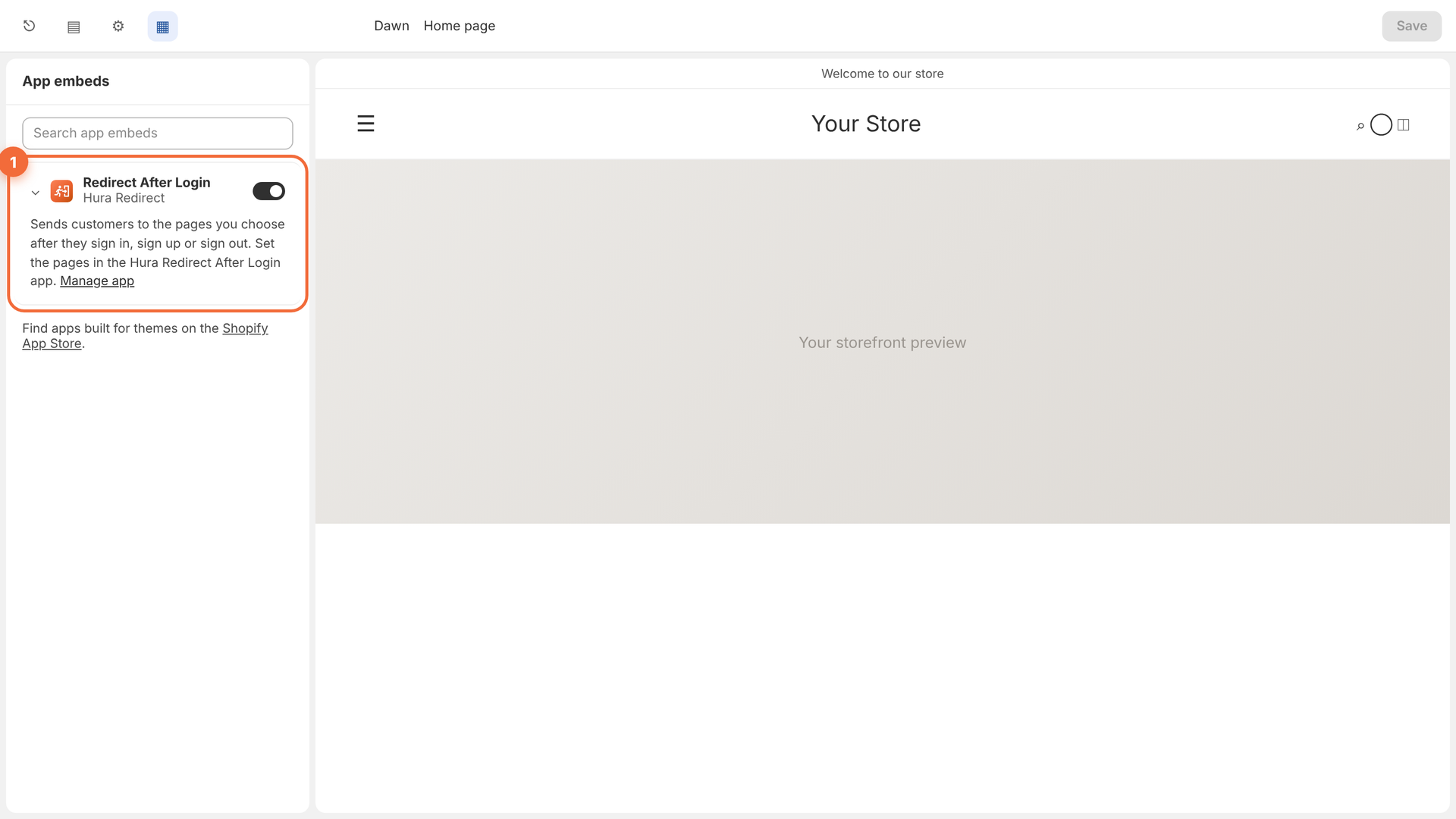
Turn on the Redirect After Login app embed in your theme editor
Back in the app, the App Embed card shows a green Active badge when the embed is on in your live theme.
Step 2: Open the app dashboard
Open the app from the Apps section of your Shopify admin. The dashboard keeps everything in one place: the redirect status, the app embed status, and one card for each customer action.
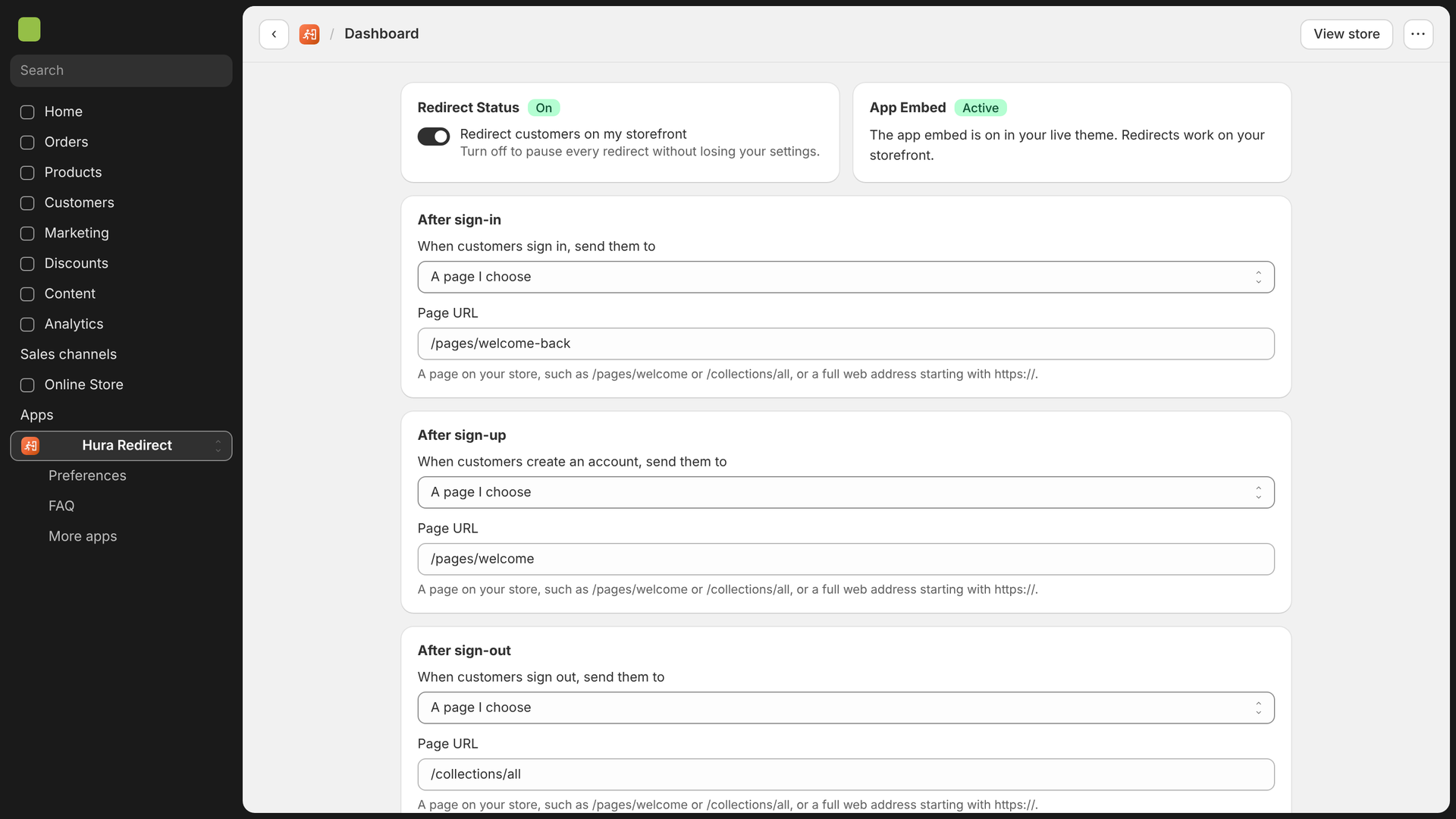
The Hura Redirect After Login dashboard
Step 3: Turn on Redirect Status
Turn on Redirect customers on my storefront. The change saves right away, and you will see a Redirects turned on message.
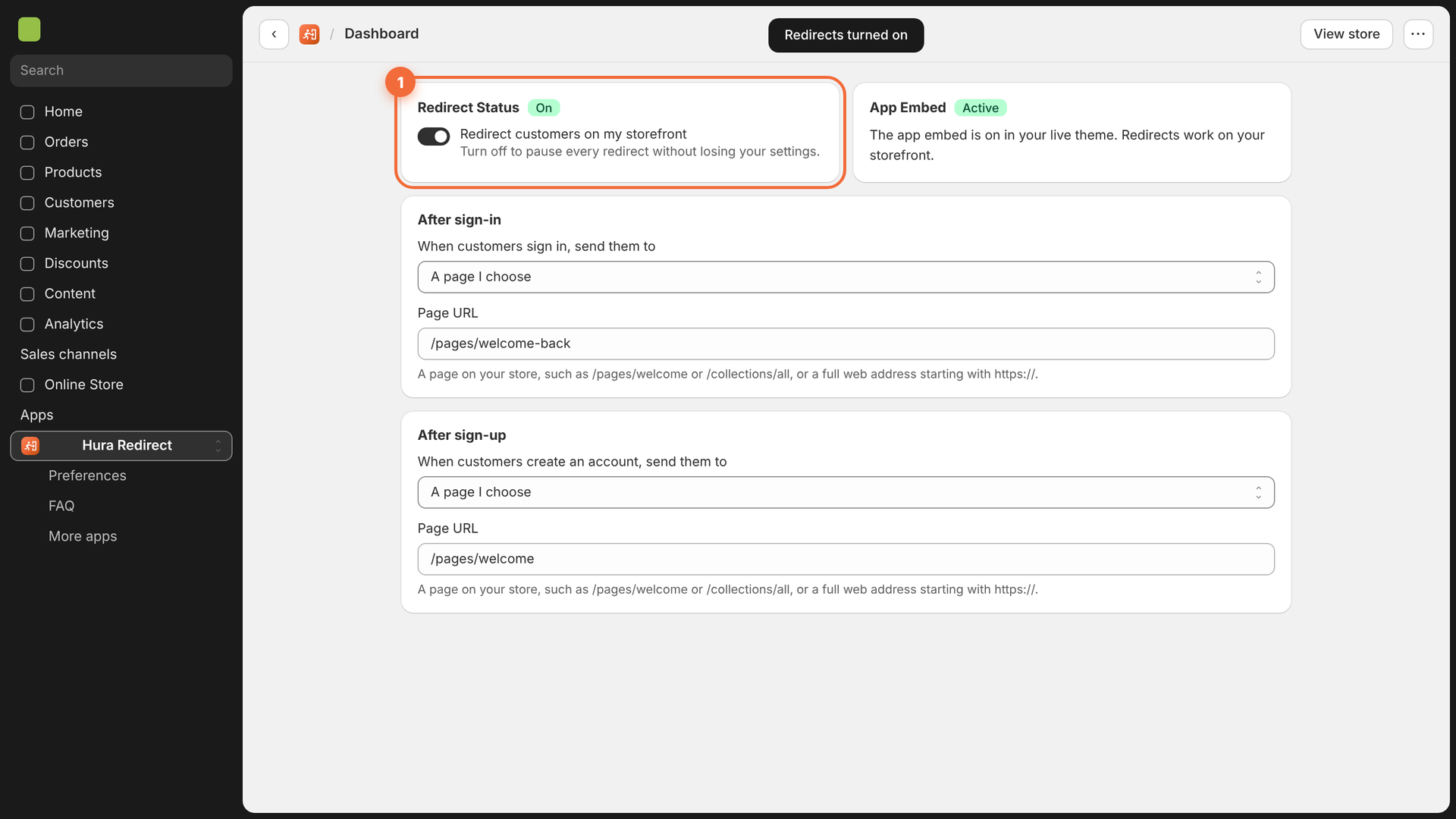
Redirect Status is on and saved instantly
Step 4: Choose where customers go after sign-in
In the After sign-in card, open the When customers sign in, send them to menu. You have three options:
- Their account page (Shopify default): keeps the standard Shopify behaviour.
- The page they were on: brings customers back to the product, collection or page they were viewing before they signed in.
- A page I choose: sends customers to a page of your choice, such as
/pages/welcome-backor/collections/members-only.
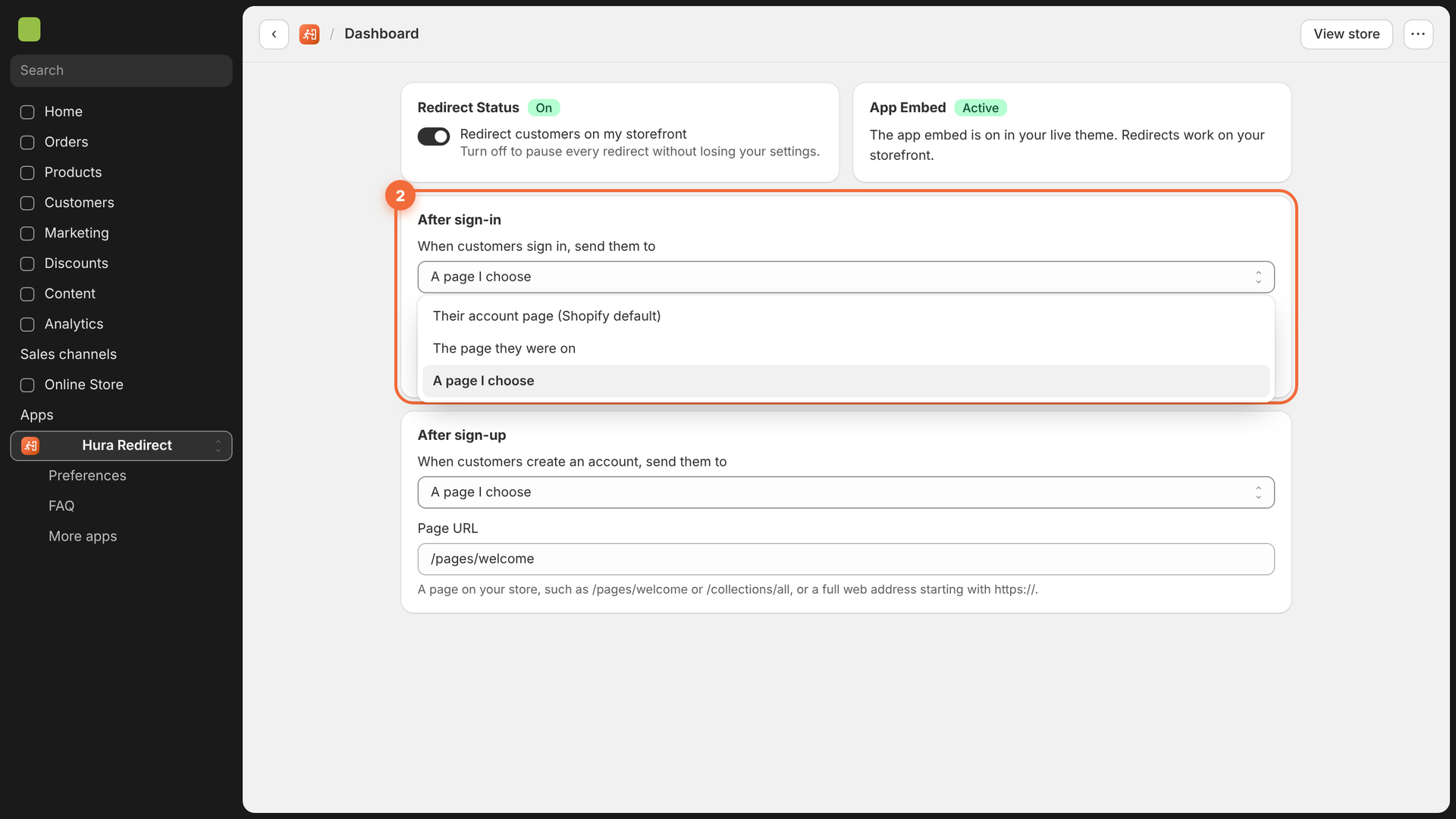
Three destination options for customers who sign in
For most stores, The page they were on is a great choice, because returning shoppers can pick up exactly where they left off. When you choose it, the Page URL field is hidden because no URL is needed.
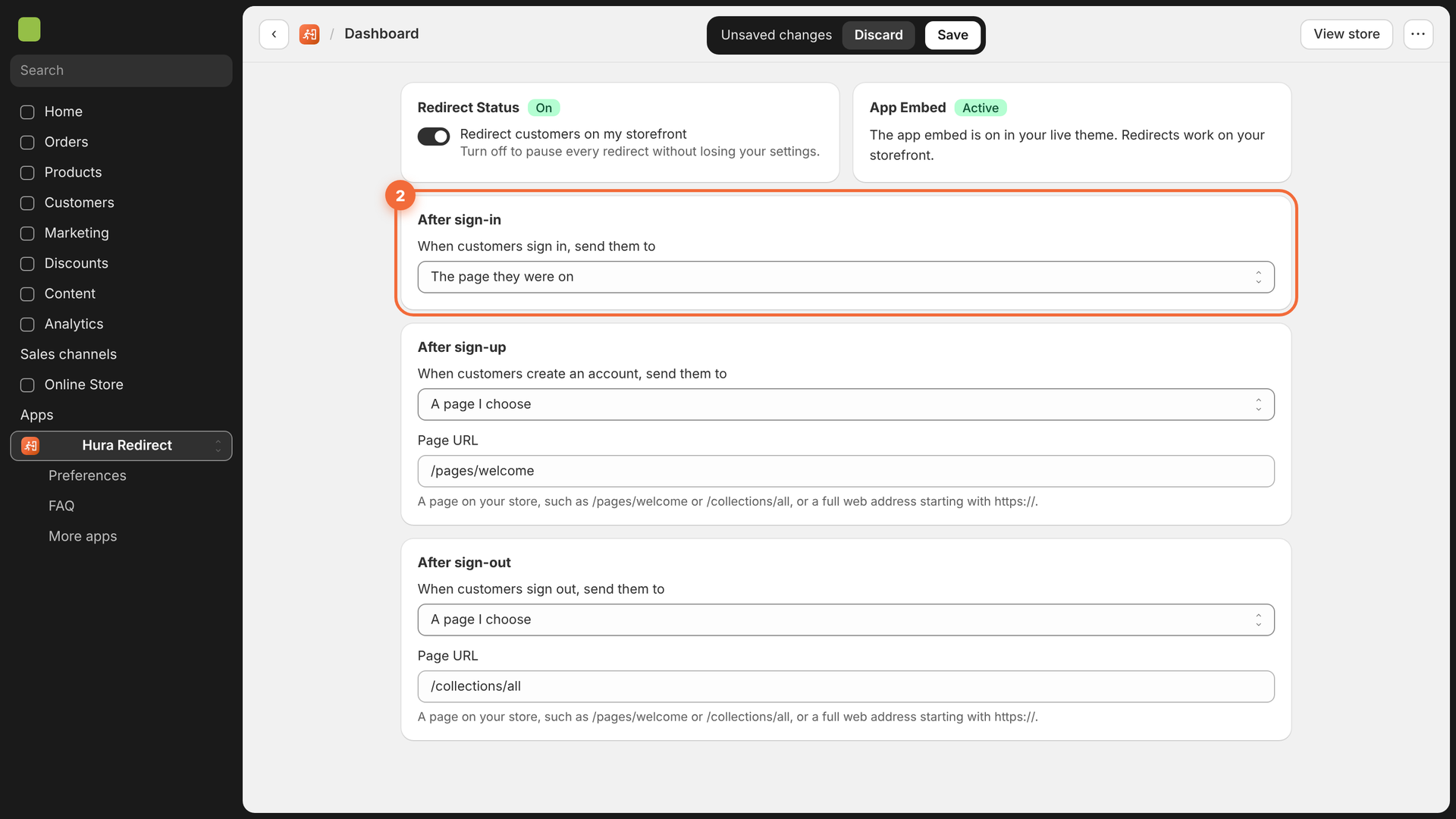
Send returning customers back to the page they were on
Step 5: Set a welcome page after sign-up
In the After sign-up card, choose A page I choose and enter the page in the Page URL field, for example /pages/welcome. This is a good place to introduce your brand, share a first-order perk or highlight your best sellers.
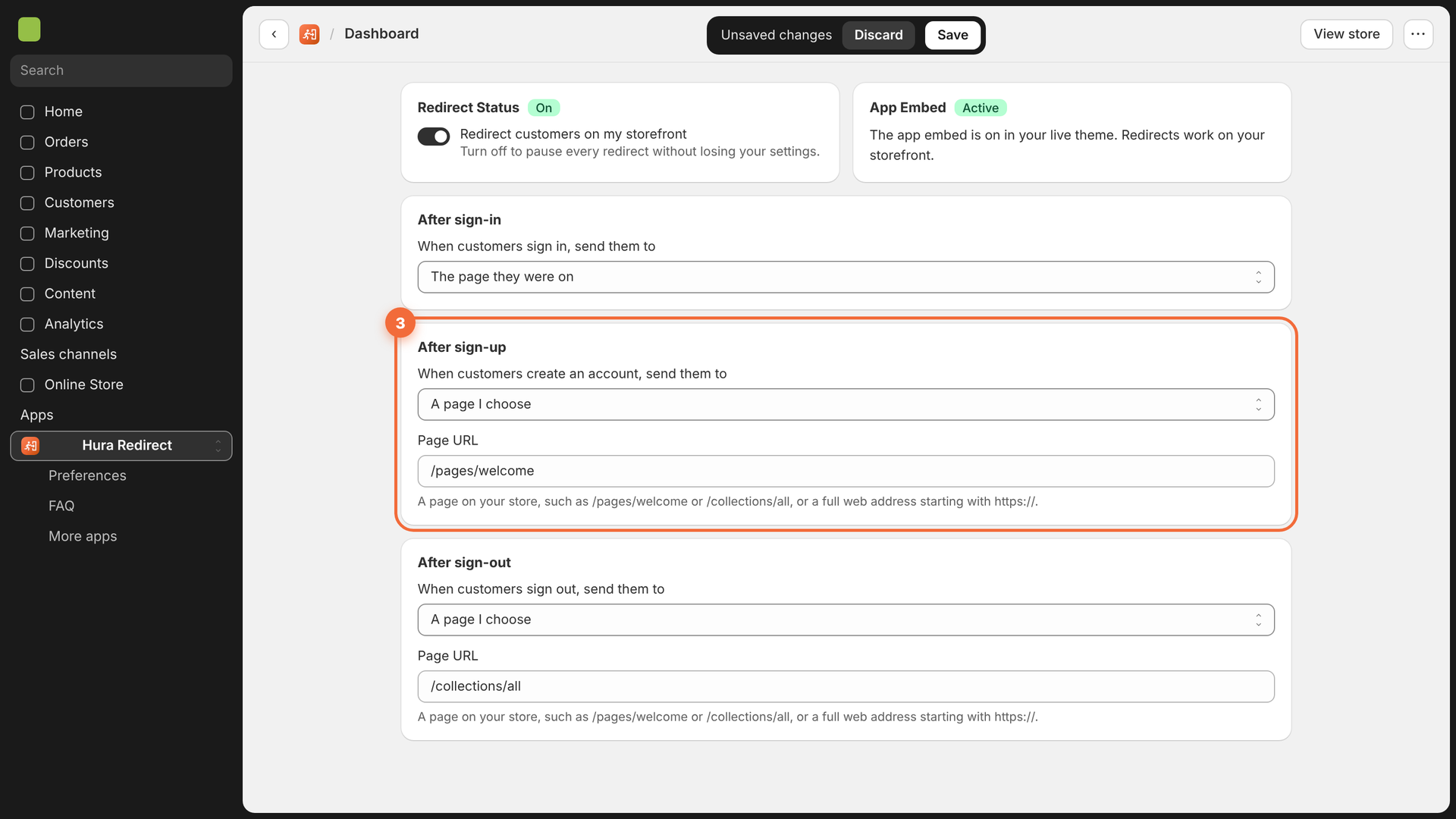
Send new customers to a welcome page
How does the app know a customer just signed up? With new customer accounts there is no separate sign-up form: a customer who signs in for the first time gets an account. The app checks when the customer was created in Shopify, and nothing about your customers is stored.
Step 6: Choose a destination after sign-out
In the After sign-out card, pick where customers go when they sign out. You can keep them shopping with /collections/all, show a friendly goodbye page, or enter a full web address that starts with https:// to send them to another website, such as your blog.
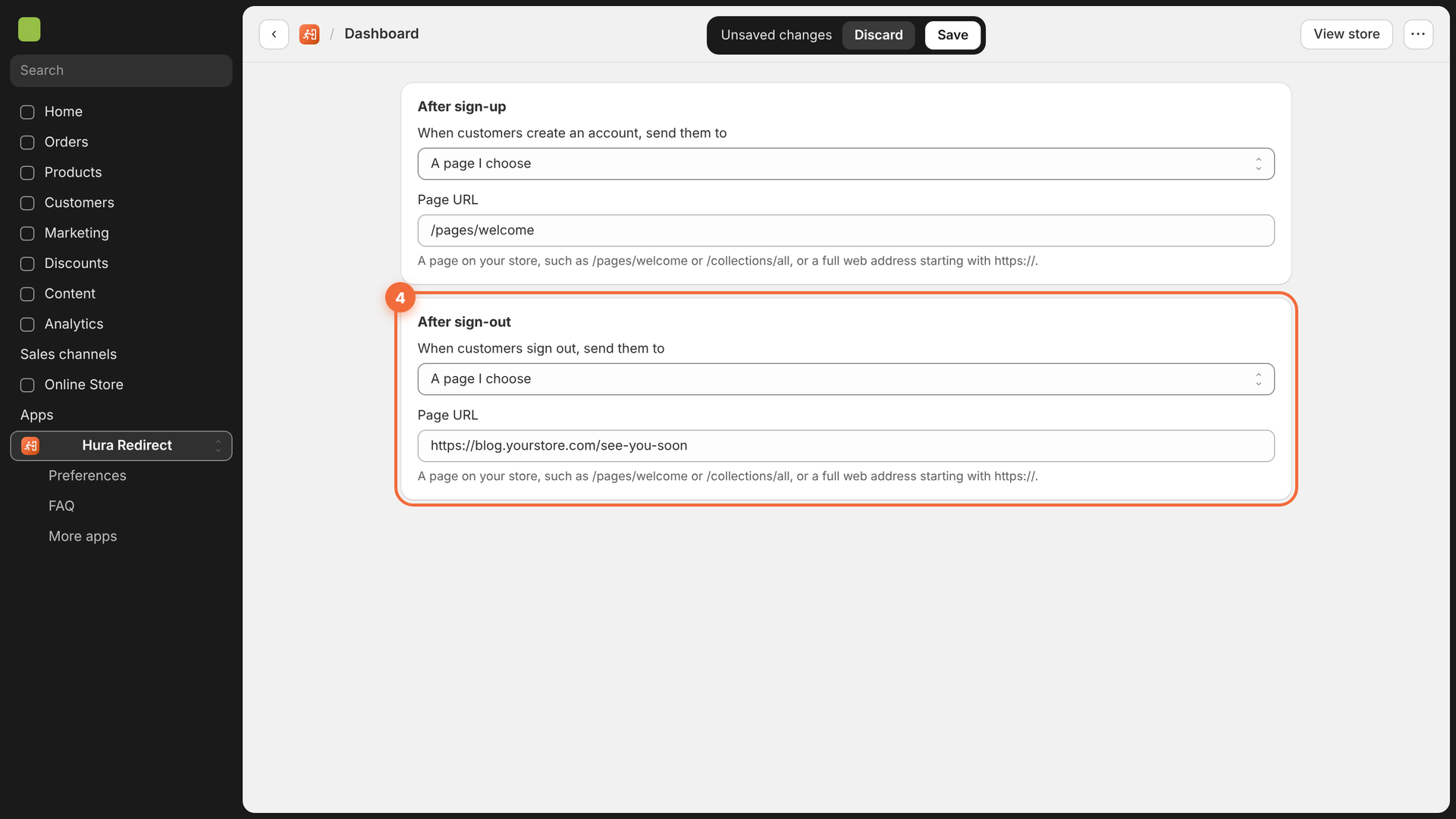
Use a store page or a full https:// address after sign-out
When you send customers to another website, they come back to your store for a moment first, then continue to that address.
Step 7: Save your settings
Click Save in the bar at the top of the page. You will see a Settings saved message, and the redirects go live on your storefront right away.
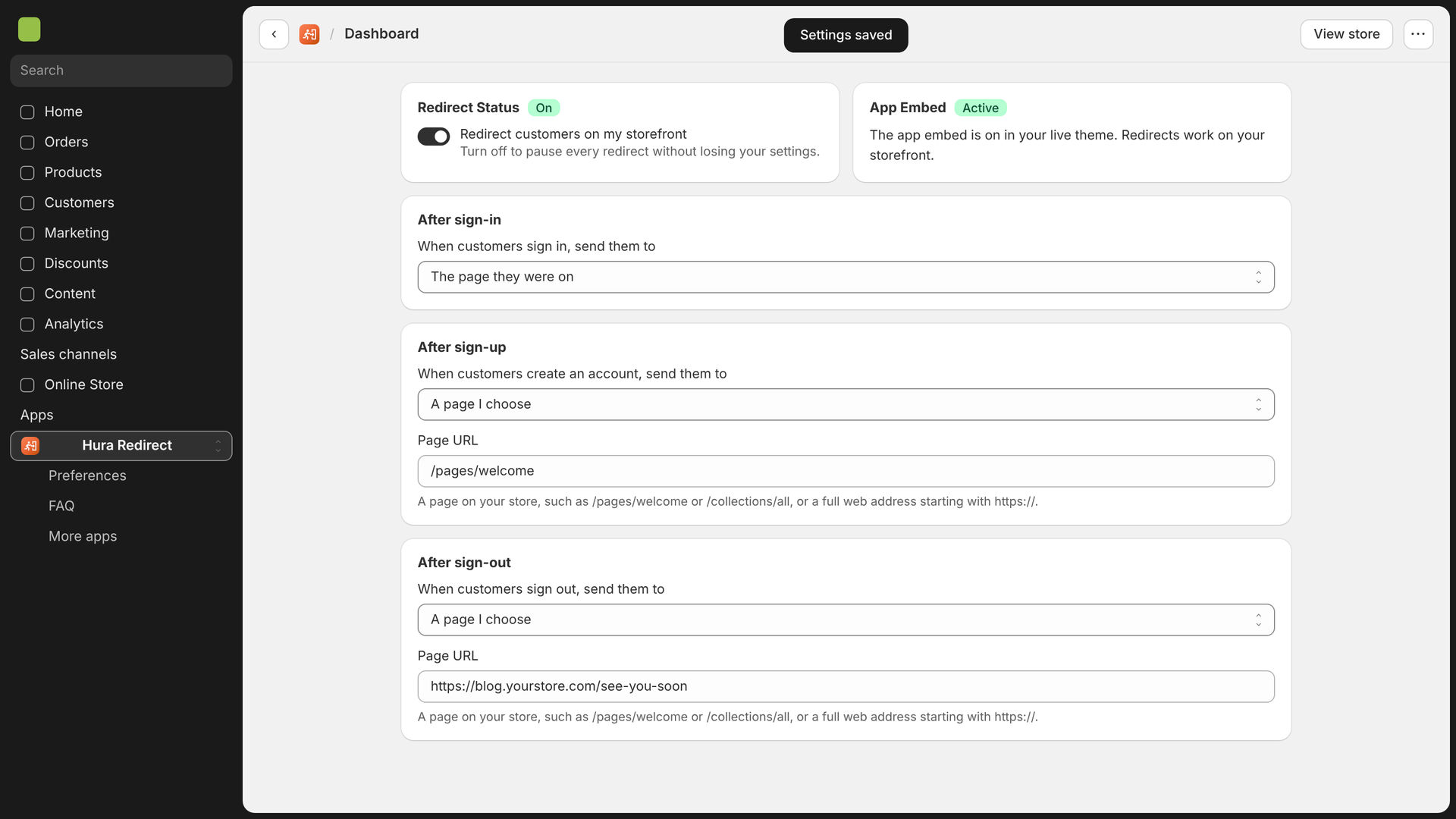
Your redirects are saved and live
If a URL is not valid, the app highlights the field and shows a message. Enter a path that starts with /, or a web address that starts with https://.
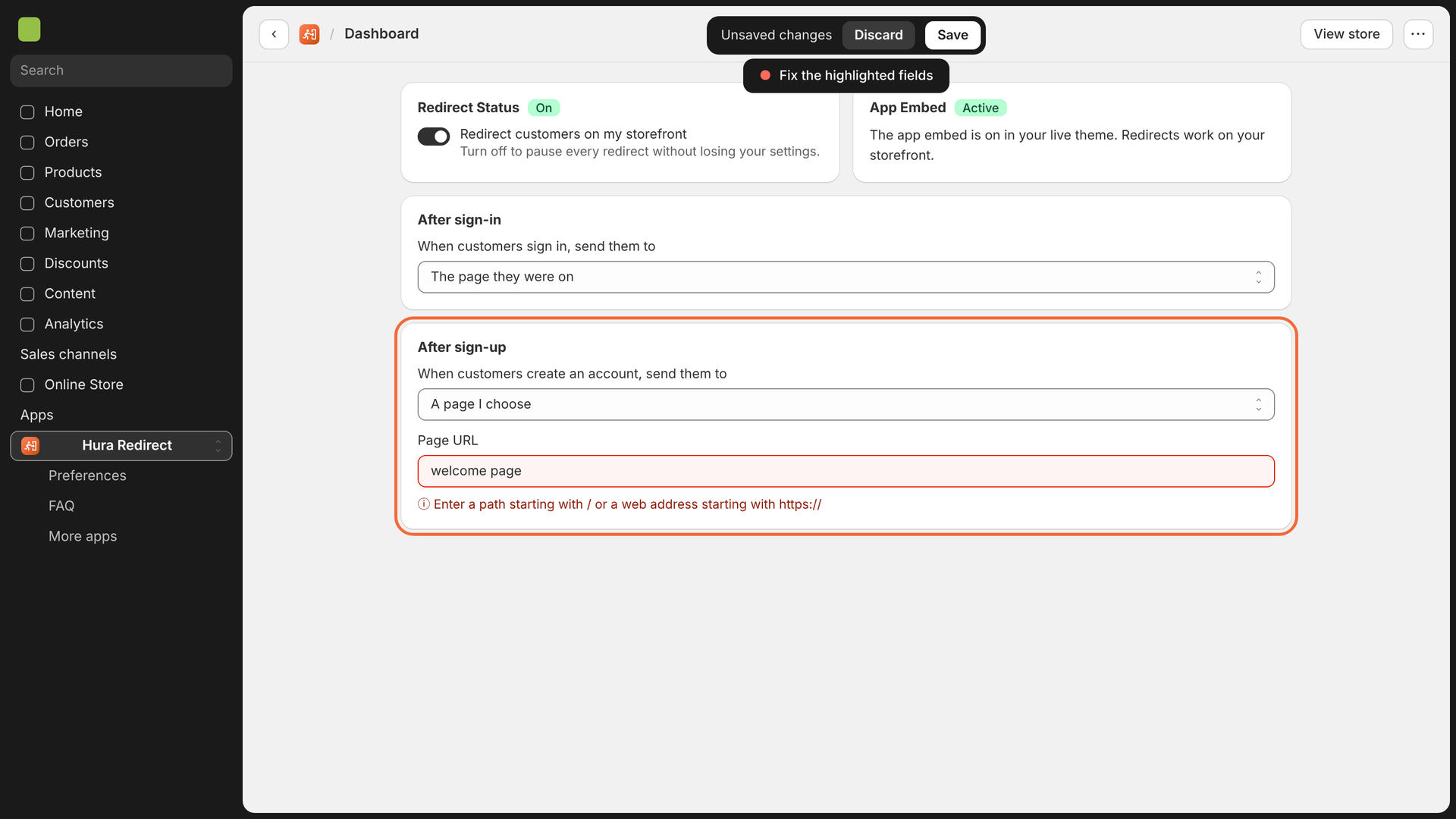
Fix the highlighted field before saving
Step 8: Test the redirects on your storefront
Open your online store, sign in with a customer account, and check that you land on the page you chose. Then sign out and create a new account to test the other two redirects.
Redirects apply when customers sign in or out with your theme’s links and forms. Customers who sign in during checkout, or with Sign in with Shop, go where Shopify sends them.
How to pause all redirects
Need to turn redirects off for a while? Turn off Redirect Status on the dashboard. Every redirect pauses immediately, and all your settings are kept for when you turn it back on.
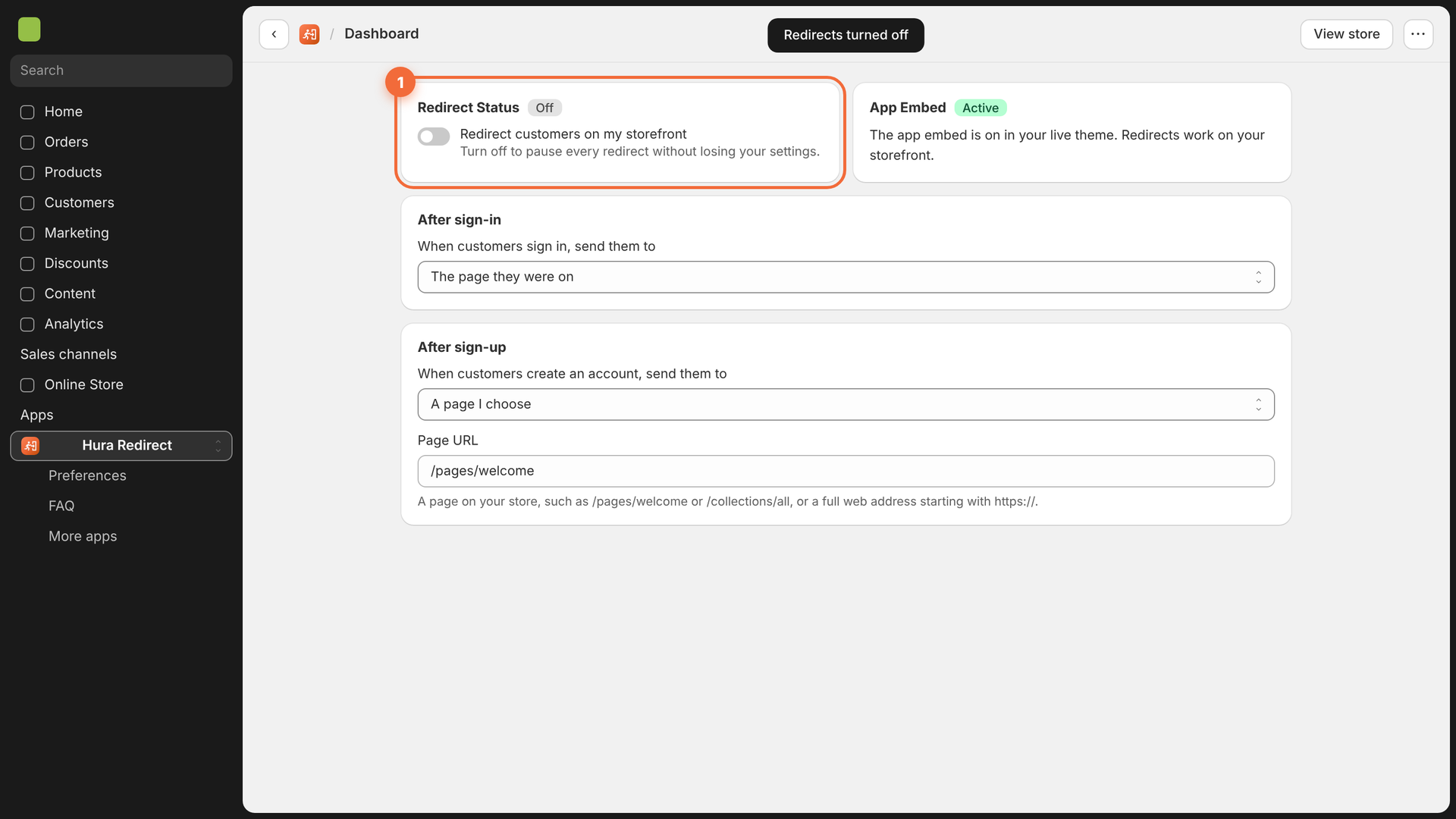
Pause every redirect without losing your settings
Change the app language
The app is available in more than 20 languages. Open Preferences in the app menu and choose a language from the Language of the app menu. The change only applies inside the app.
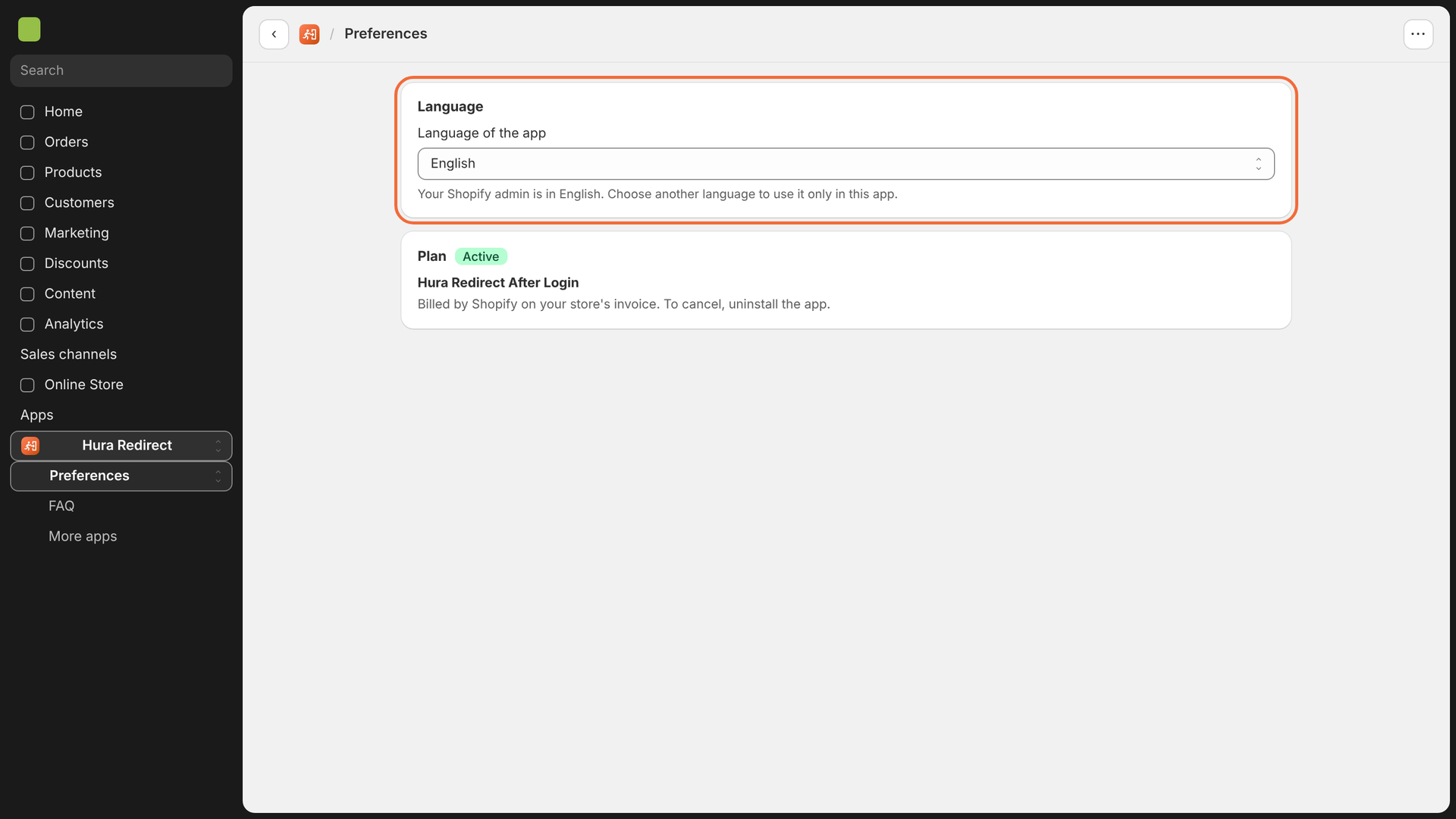
Choose the language of the app in Preferences
Frequently asked questions
Does it work with new customer accounts?
Yes. The app works with both new customer accounts and legacy customer accounts, and keeps working when you upgrade.
Can I send customers to another website?
Yes. Enter a full web address starting with https://.
I used the old version of the app. Do I need to set it up again?
No. Your pages are kept. Turn on the app embed once, and the app removes the old script by itself.
What happens when I uninstall the app?
The app embed is removed from your theme automatically, so no leftover code stays in your store.
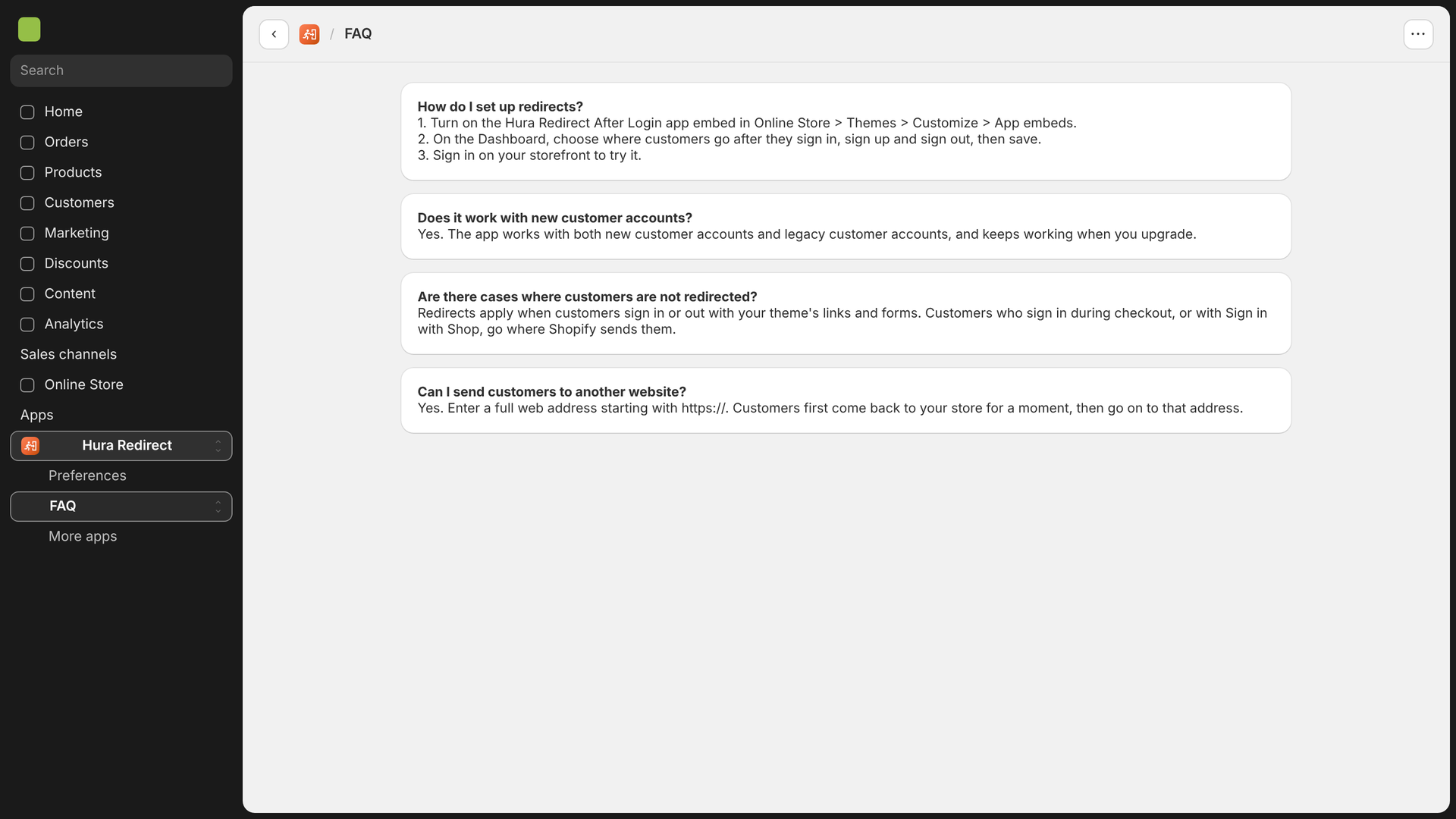
More answers are available on the FAQ page inside the app
Conclusion
Sending customers to the right page after they sign in, sign up or sign out is a small change that makes your store feel more personal and helps shoppers get back to buying. With Hura Redirect After Login, you can set it up in a few minutes, without any code.