How to Customize a Shopify Minishop on WordPress: Layout, Product Cards, Quick View and Cart Settings

Embedding a Shopify minishop in a WordPress post takes only a few minutes. Most merchants paste the default embed code and stop there. The default works, but a minishop that matches your blog’s design and the article’s topic usually gets far more clicks than a generic product grid.
This guide covers the settings that matter in Hura Product Showcase Builder: which minishop type to choose, how to size the grid for a blog column, how to style product cards, and how to set up quick view, the cart and markets. It also covers where to paste the code in different WordPress editors and how to fix the most common problems. All examples use a real Perfume collection embedded on a WordPress site.
What you need before you start
- A Shopify store with Hura Product Showcase Builder installed.
- A WordPress site where you can add HTML (any modern theme works).
- A collection or a short list of products that fits the article you want to monetize.
1. Choose the right minishop type
When you click Create minishop, the app asks you to choose a type. You can’t change the type later, so pick based on how the page will be used:

- Collection is best for evergreen content such as category guides, “best of” lists or a seasonal catalog. New products added to the collection appear automatically, so you never need to edit the post.
- Specific products is best for reviews, comparisons and campaign pages where the order matters and you want only the products mentioned in the text.
Tip: Create small, topic-specific collections in Shopify (for example “Perfumes under $30” or “Summer fragrances”) and point each article’s minishop at one of them. The products then match what the reader is reading about.
2. Products and layout: size the grid for a blog column
Most WordPress content areas are only 650–800px wide, much narrower than a full Shopify storefront. That makes the layout settings important:

- Products to show: 8–12 is enough inside an article. If a reader wants more, turn on Show pagination rather than showing 40 products at once.
- Sort by: Best selling is a safe default. Use Newest for “new arrivals” posts and a price sort for budget guides.
- Products per row: 3–4 on desktop, 2 on tablet and 1 on mobile works well for most themes. Check each device with the three icons above the live preview.
- Spacing between products: increase it slightly if your theme has a lot of white space, so the grid doesn’t look cramped next to your text.
3. Product card design: make it look native
A minishop that matches your theme looks like part of the article rather than an ad. The card settings let you match it closely:

- Background, border color and corner radius: copy these values from your theme’s buttons or boxes.
- Shadow and hover effect: a subtle zoom on hover tells readers the cards can be clicked.
- Image ratio and image fit: use Square 1:1 with Fill (crop) for product photos that fill the frame. For tall products such as perfume bottles, or packshots on white backgrounds, switch Image fit to the option that fits the whole image inside the frame so the product isn’t cut off.
- Title and price: limit the title to 2 lines so cards stay the same height, and keep the price visible. Sale prices with a strikethrough get attention inside a blog post.
4. Actions, quick view and cart
This is where a minishop differs from a list of links. Shoppers can stay on your page while they browse and buy.

- When a product is clicked: choose Open quick view to keep readers on the page. Only link to the product page if your product pages contain information the quick view can’t show.
- Quick view content: show the description and variant picker for products with sizes or colors. The Buy now button is useful for impulse buys and gift guides.
- Button text and colors: rename “Add to cart” to match your blog’s voice and language, and use your brand color for the button background.
- After adding to cart: Open cart confirms the action immediately, which reassures first-time buyers.
- Cart button and text: set the floating cart’s position, size and badge color, and translate cart messages (empty cart, checkout, discounts) if your blog isn’t in English.
5. Market: show the right prices for your readers
If you sell in several Shopify Markets, the Market section lets you set a Country code (for example US, GB or DE) and a Language code for each minishop. This lets you create one minishop per regional blog or language version of an article, each showing the right currency and translations. Leave the fields empty to use your default market.
6. Where to paste the embed code in WordPress
After you click Save, the app shows your embed code: a <div> with your minishop ID followed by a <script> tag. Where you paste it depends on the editor you use:
- Block editor (Gutenberg): add a Custom HTML block. You can type
/htmlin an empty paragraph to find it quickly. - Classic editor: switch to the Text tab (not Visual) before pasting. Otherwise WordPress may encode the code as plain text.
- Elementor, Divi and other page builders: use the builder’s HTML or Code widget.
- Sidebar or footer: add a Custom HTML widget under Appearance > Widgets to show a small “Shop our bestsellers” minishop across the whole site.
Here is the result in a standard WordPress post:
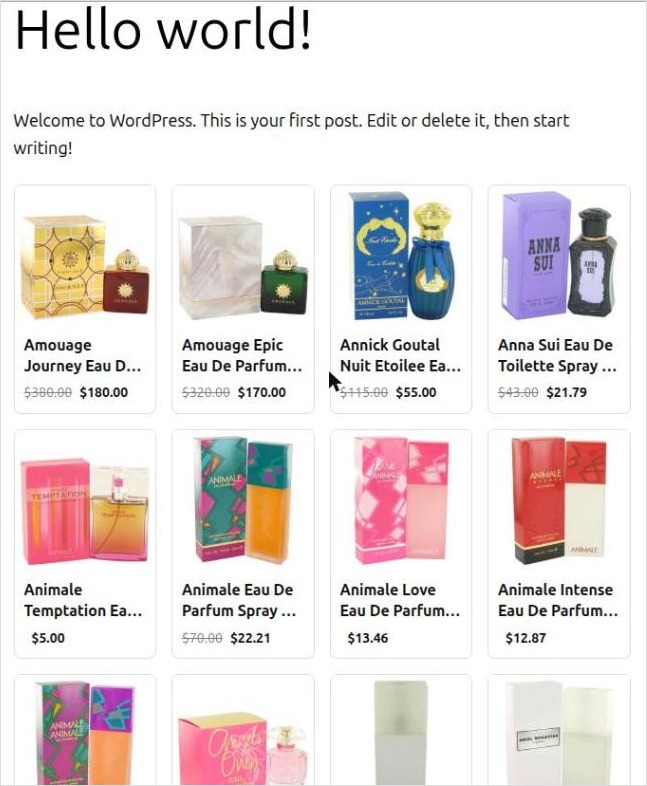
Clicking a product opens the quick view, and the cart slides in with quantity controls, a discount code field and a Checkout button that leads to your Shopify checkout:

Troubleshooting common issues
The minishop doesn’t appear on the live page
Caching and optimization plugins (WP Rocket, LiteSpeed Cache, Autoptimize and similar) sometimes delay or combine third-party scripts. Exclude huracdn.com/js/hura-minishop.min.js from JavaScript optimization, clear the cache and reload the page.
The code shows up as text
The code was pasted into a normal paragraph or the classic editor’s Visual tab. Remove it and paste it again into a Custom HTML block or the Text tab.
Do I need to re-paste the code after changing the design?
No. The embed code only contains your minishop ID. Save your changes in the app, then refresh the WordPress page (and clear your cache if you use one).
Where do the orders go?
Checkout happens on your Shopify store, so orders, payments, inventory and discount codes work exactly as they do in your normal storefront.
Start selling from your content
A well-configured minishop turns blog posts, guides and landing pages into places where readers can buy, without a second store or any coding. Choose the right type, size the grid for your content column and match the cards to your theme. Readers can then shop without leaving the article.
Prefer to watch? See the 2-minute video walkthrough, then install Hura Product Showcase Builder and create your first minishop.